Contact Us

If you still have questions or prefer to get help directly from an agent, please submit a request.
We’ll get back to you as soon as possible.

Please fill out the contact form below and we will reply as soon as possible.

  • Knowledge Base MINI
  • Contact us
English (US)
US English (US)
DE German
  • Home
  • Card payment
  • Pay Terminal Plus (WiFi card reader)

How can I add or update my logo on the Pay Terminal Plus?

Erfahren Sie, wie Sie Ihr Logo auf dem Pay Terminal Plus anzeigen und aktualisieren können

Written by Jens B.

Updated at April 10th, 2025

Contact Us

If you still have questions or prefer to get help directly from an agent, please submit a request.
We’ll get back to you as soon as possible.

Please fill out the contact form below and we will reply as soon as possible.

  • First Steps
    Hello new Bird! About your Apple devices Step 1: How to set up your network Step 2: MY orderbird Step 3: How to install and set up the app Step 4 - How to serve your first guest Step 5 - Card payment with orderbird PRO
  • Working with orderbird PRO
    Working Settings Fiscalization in Austria (RKSV) "Kassensicherungsverordnung" in Germany orderbird PRO - Versions and Updates
  • Card payment
    Your start with card payment with orderbird PRO and Worldline Your start with card payment with orderbird PRO and Nexi Germany Your start with American Express Working with orderbird card payment Pay Terminal Plus (WiFi card reader) Pay Terminal One (Bluetooth card reader) Card payment on the smartphone
  • Analyze your sales
    Reports on orderbird PRO The DATEV export Reports on MY orderbird
  • Printer & Network
    Printer Network
  • Expand your orderbird PRO
    orderbird PRO Cashbook orderbird Gift Cards Bestellmanagement
  • MY orderbird - Your orderbird business account
    Your account settings on MY orderbird
+ More

Table of Contents

In a nutshell Let's go Any questions? My logo has changed. How can I update the new one on the PTP?

If you decided not to show your logo on the Pay Terminal Plus during the initial setup, you can still add it on your device at any time. Here's how!


In a nutshell

  • Tap on your Pay Terminal Plus on Menu > Settings > Your Logo 
  • Activate “Show Logo on Pay Terminal Plus.”

Let's go

  1. Tap on Menu in the upper left corner.
  2. Tap on Settings > Your Logo.
  3. Activate here “Show logo on Pay Terminal Plus.”
    Tip: If you have activated the dark mode on Pay Terminal Plus, you can adapt the image to the dark mode by selecting: “Customize logo for dark mode.”
  4. Done!

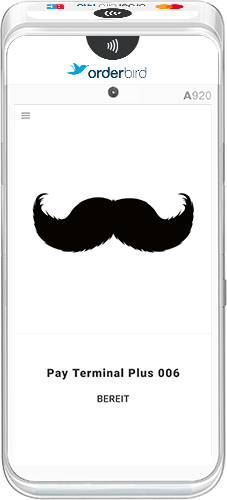
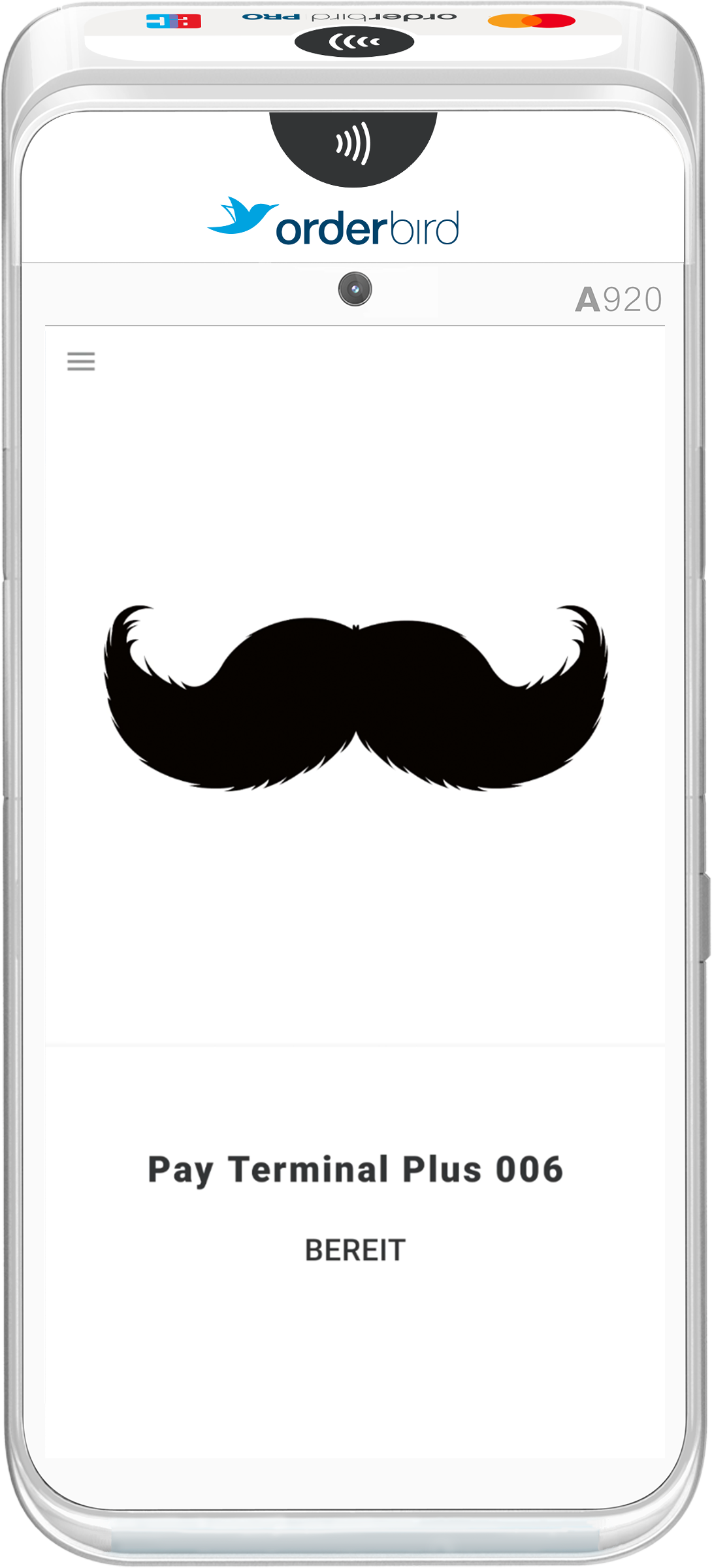
With Logo 

(Light Mode)

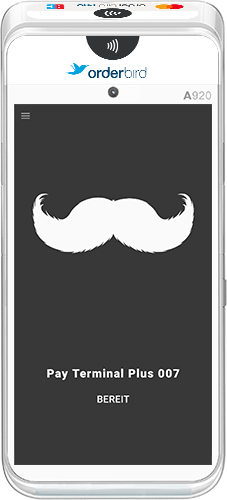
With Logo
(Dark Mode)
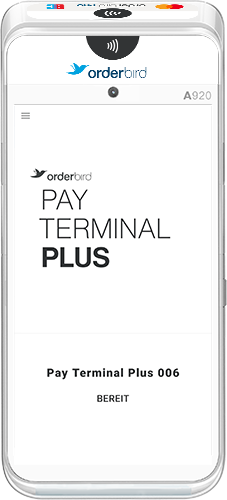
Without Logo (Light Mode)

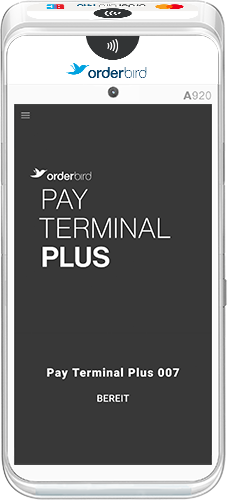
Without Logo

(Dark Mode)


Any questions?

My logo has changed. How can I update the new one on the PTP?

  1. First, unpair all your devices from each other - the PTP and any Apple devices it's connected to.
  2. You start with your Apple devices first.
    1. In the main menu of the orderbird app, tap on Settings → Payment → Payment Terminal → Manage Terminals. Under “Paired Wi-Fi Terminals,” you will find an overview of all connected devices.
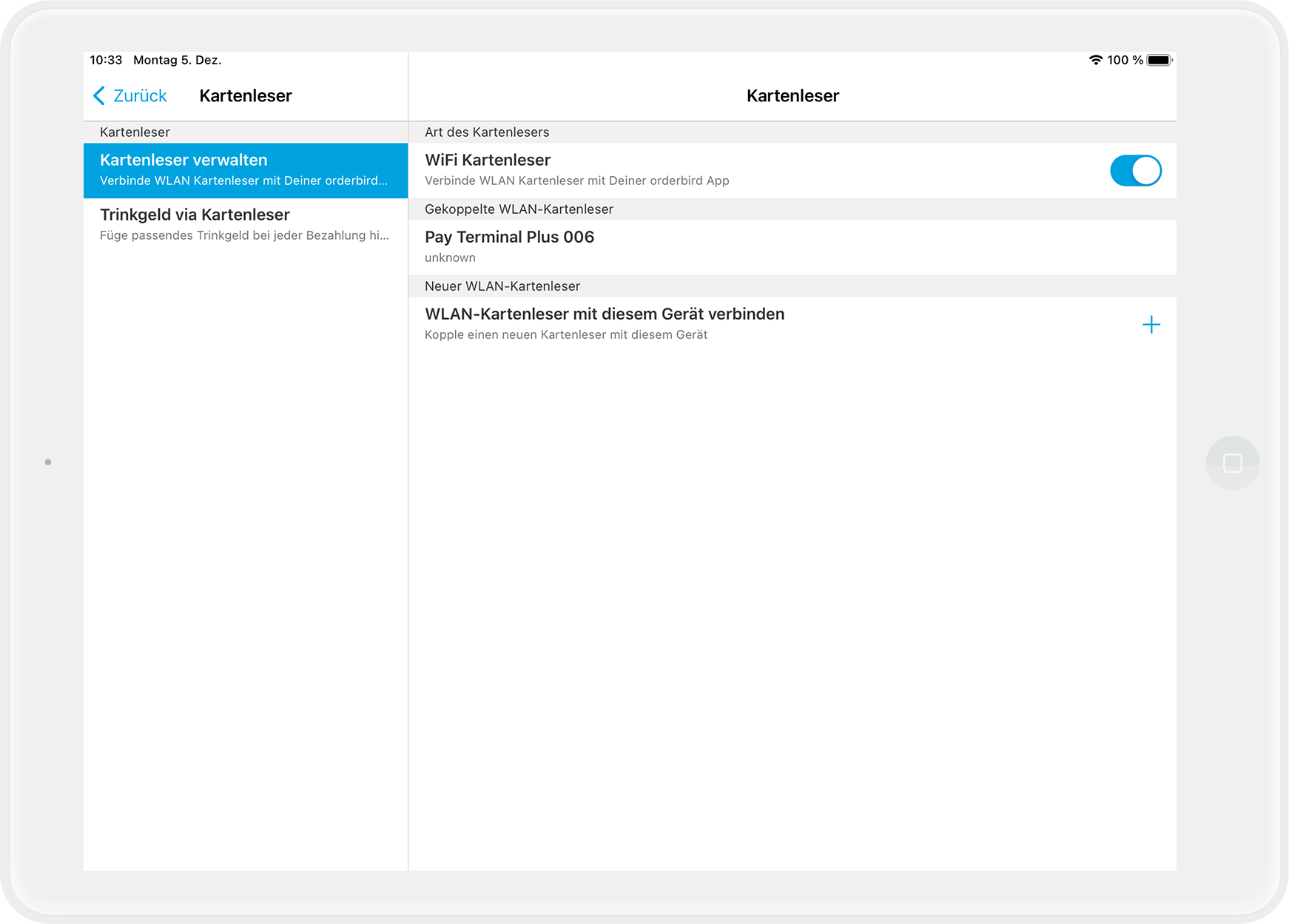
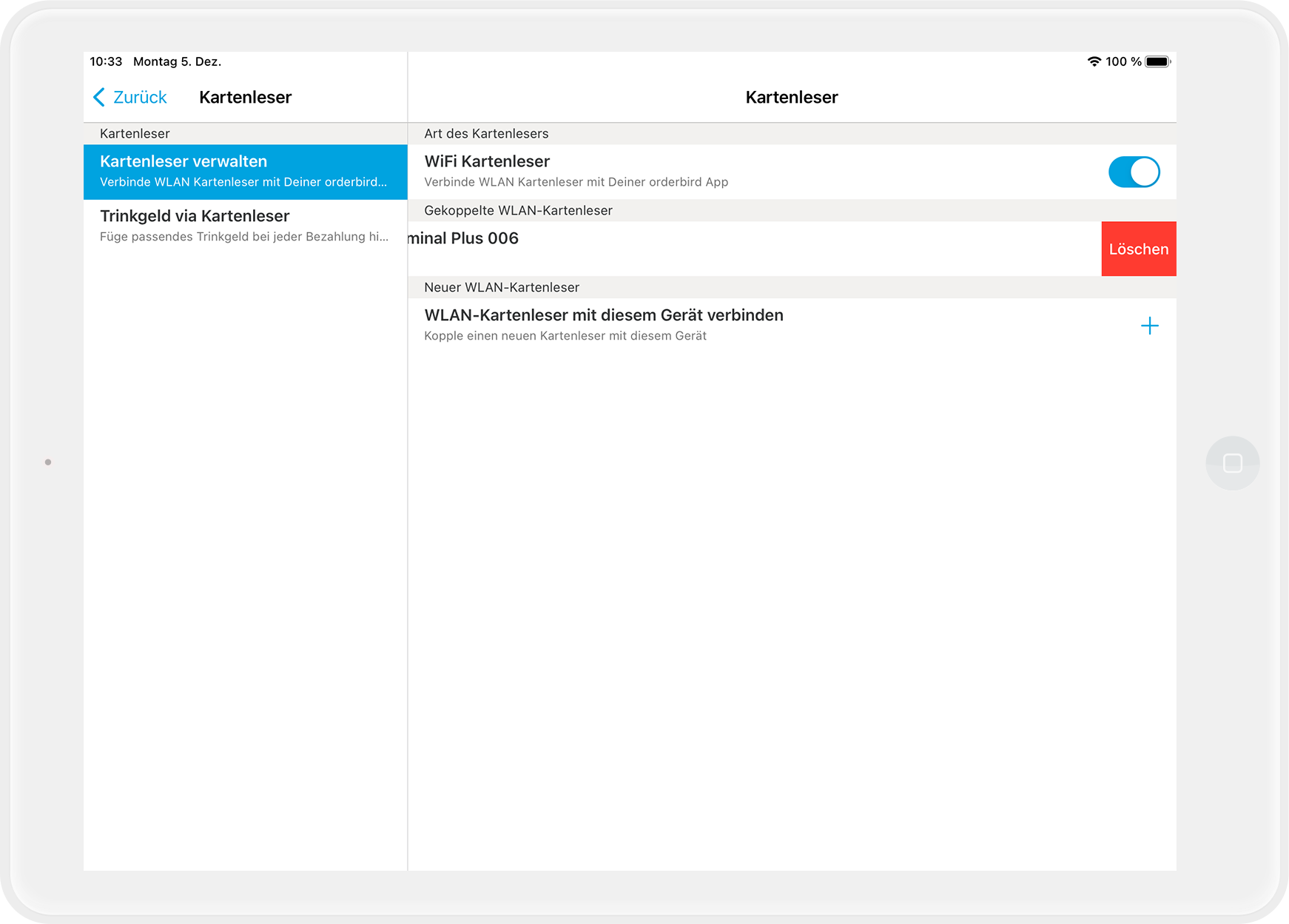
    2. Now swipe your finger to the left on the entry with the name of the card reader. Then tap on “Delete” on the right.
  3. The following steps will continue on your card reader.
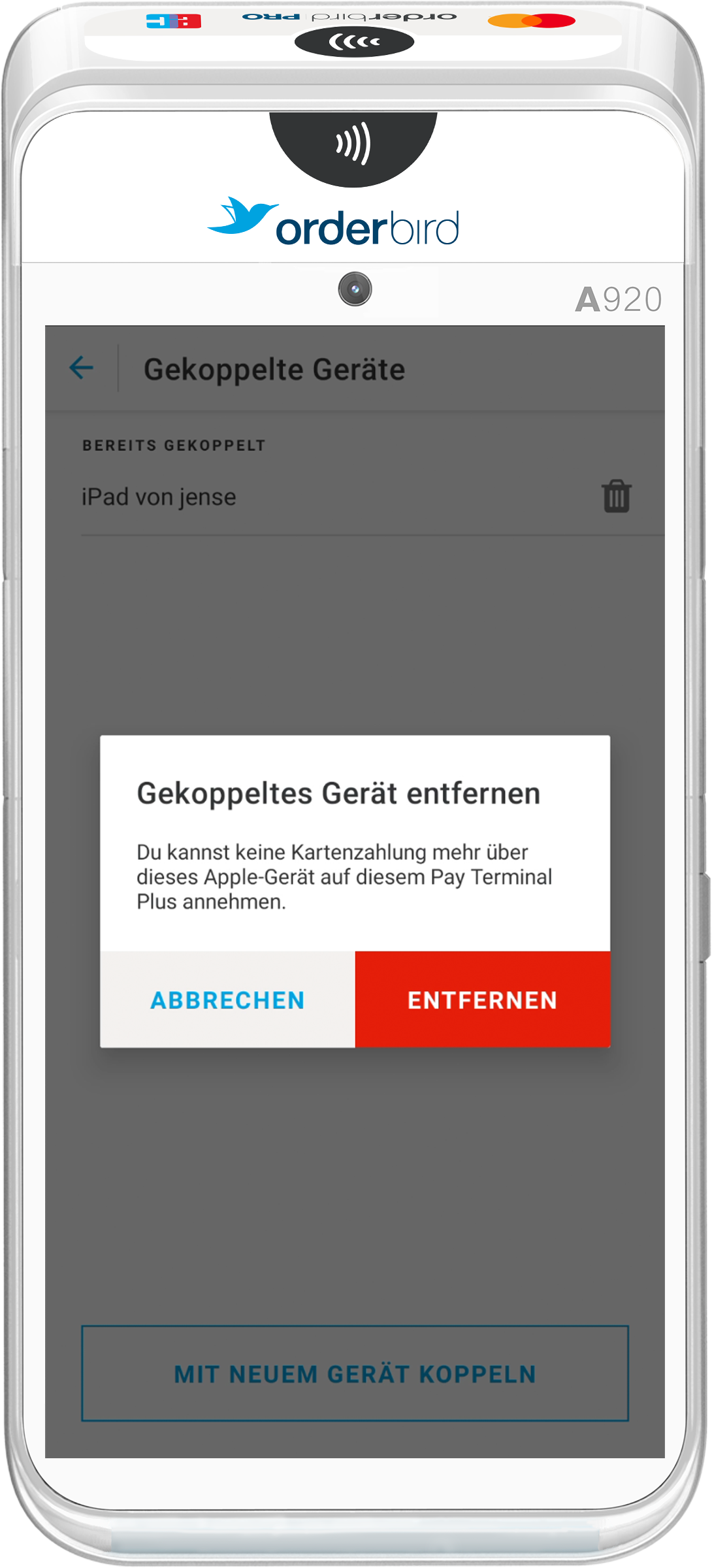
    1. Tap on the menu symbol in the upper left corner and then on “Paired Devices”.
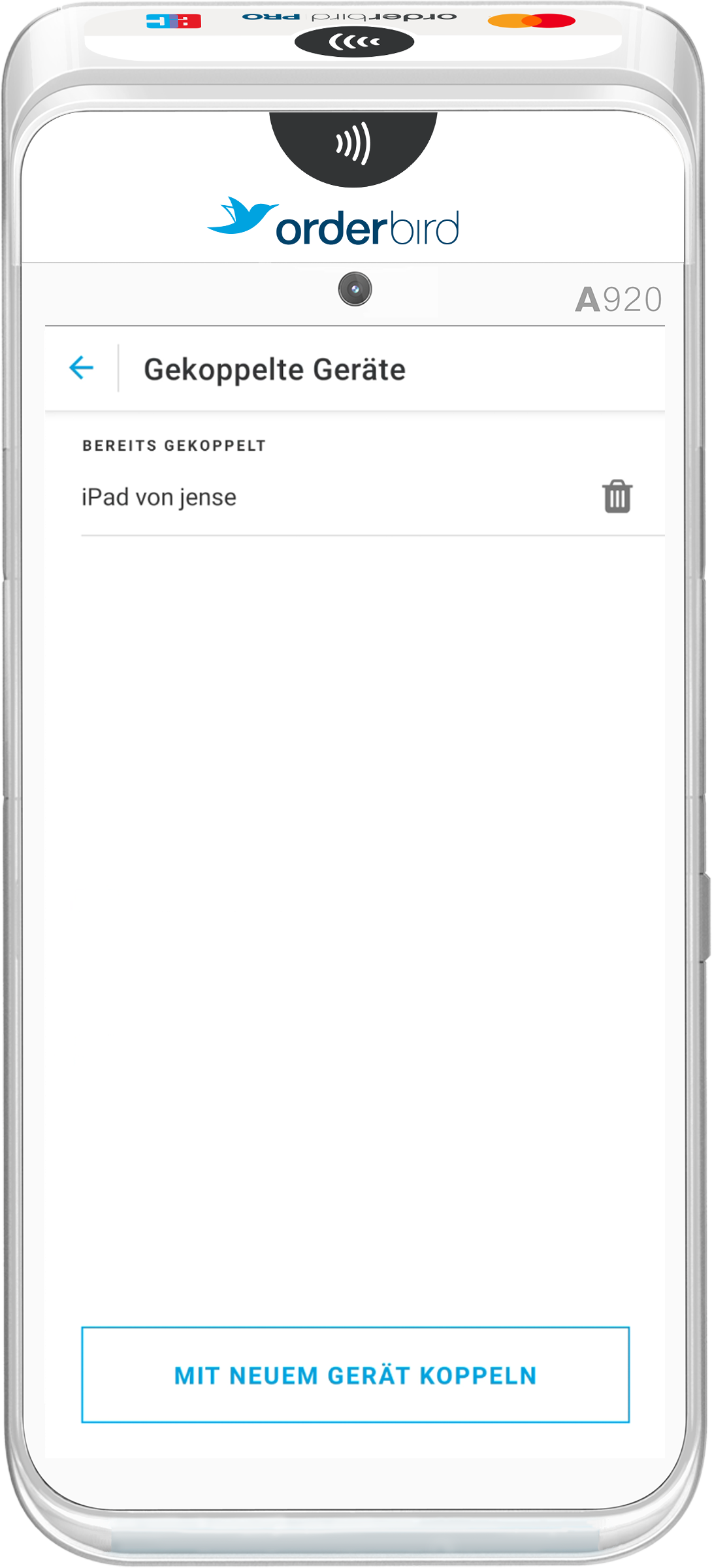
    2. Tap on the bin icon next to the name of the Apple device and then on “Remove” on the right.
  4. Upload your new logo to MY orderbird if you haven't already. 
  5. Re-launch the orderbird App.
    1. Ensure that “Print logo on invoices” is enabled under Settings → Bill Template → Logo.
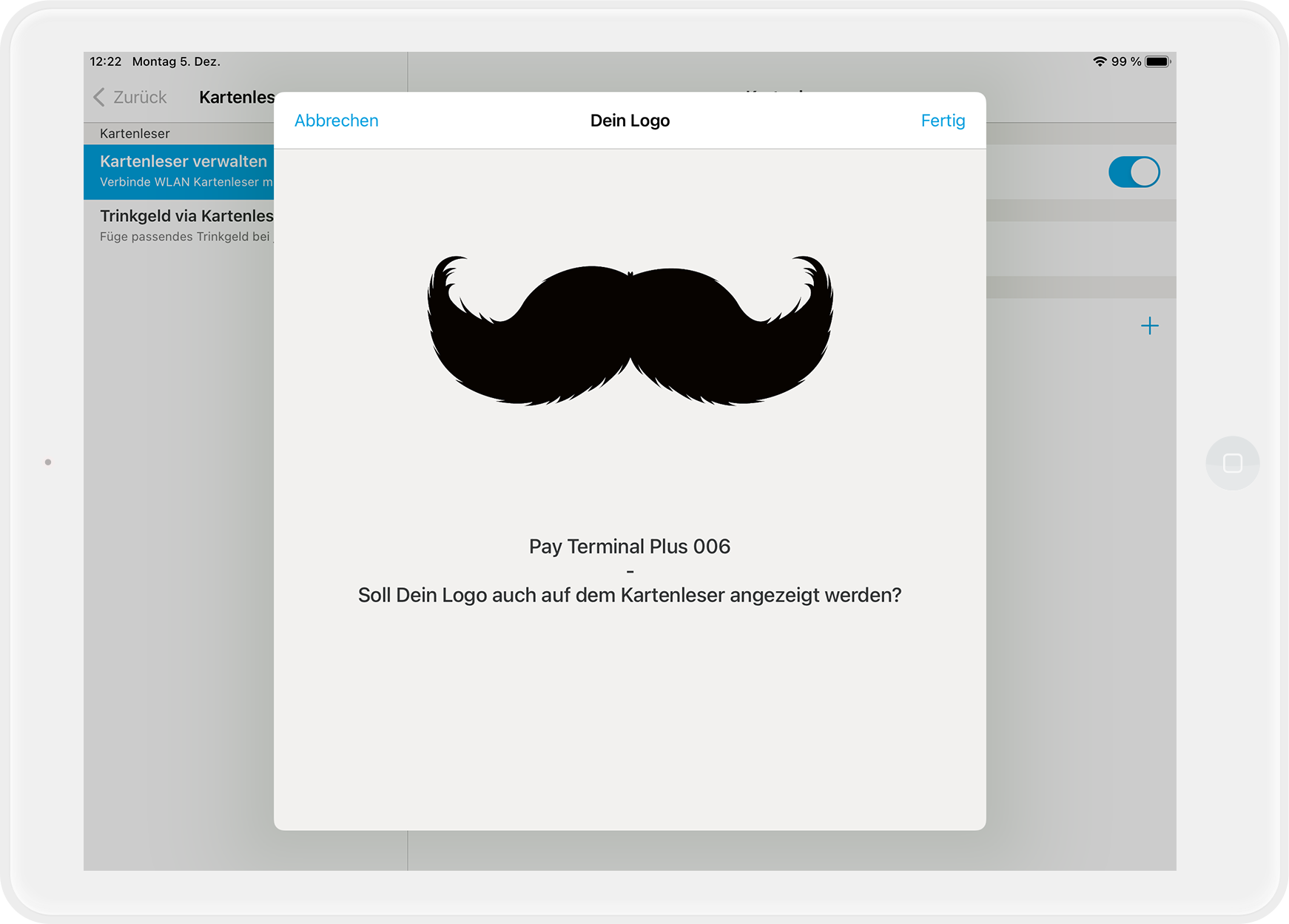
  6. Pair the Pay Terminal Plus anew and confirm on the start screen that you want your logo displayed on the card reader by tapping “Done” in the top right corner.
  7. You made it!
update logo logo display

Was this article helpful?

Yes
No
Give feedback about this article

Related Articles

  • How do I reset my Pay Terminal Plus?
030 208 983 098

About orderbird

With over 17,000 customers — restaurants, cafés, bars, clubs, and beer gardens — orderbird is one of the leading Point of Sales systems for the hospitality industry in Europe. With the mobile POS system orderbird MINI, orderbird also offers a smart cash register solution for service providers, retailers, mobile hospitality, and the crafts.

orderbird was founded in 2011 and today employs more than 120 people.

Address

orderbird GmbH
Ritterstraße 12
D-10969 Berlin
Phone: 030 208 983 098

Opening hours

Monday: 09:00 - 18:00
Tuesday: 09:00 - 18:00
Wednesday: 09:00 - 18:00
Thursday: 09:00 - 18:00
Friday: 09:00 - 18:00
Saturday: Closed (except emergency support)
Sunday: Closed (except for emergency support)


© 2026 orderbird GmbH
  • Imprint
  • Privacy Policy
  • Legal Notice
Expand