Contact Us

If you still have questions or prefer to get help directly from an agent, please submit a request.
We’ll get back to you as soon as possible.

Please fill out the contact form below and we will reply as soon as possible.

  • Knowledge Base MINI
  • Contact us
English (US)
US English (US)
DE German
  • Home
  • Working with orderbird PRO
  • Working
  • Tables and Floor Plan

How do I manage my tables?

In this article, you'll learn how to organize your tables easily and efficiently.

Written by Jens B.

Updated at November 28th, 2024

Contact Us

If you still have questions or prefer to get help directly from an agent, please submit a request.
We’ll get back to you as soon as possible.

Please fill out the contact form below and we will reply as soon as possible.

  • First Steps
    Hello new Bird! About your Apple devices Step 1: How to set up your network Step 2: MY orderbird Step 3: How to install and set up the app Step 4 - How to serve your first guest Step 5 - Card payment with orderbird PRO
  • Working with orderbird PRO
    Working Settings Fiscalization in Austria (RKSV) "Kassensicherungsverordnung" in Germany orderbird PRO - Versions and Updates
  • Card payment
    Your start with card payment with orderbird PRO and Worldline Your start with card payment with orderbird PRO and Nexi Germany Your start with American Express Working with orderbird card payment Pay Terminal Plus (WiFi card reader) Pay Terminal One (Bluetooth card reader) Card payment on the smartphone
  • Analyze your sales
    Reports on orderbird PRO The DATEV export Reports on MY orderbird
  • Printer & Network
    Printer Network
  • Expand your orderbird PRO
    orderbird PRO Cashbook orderbird Gift Cards Bestellmanagement
  • MY orderbird - Your orderbird business account
    Your account settings on MY orderbird
+ More

Table of Contents

In a nutshell Let's go! Adding New Tables Renaming Tables Table and Printer: A Perfect Match Special Case: The Counter Reordering Tables Done? Any questions? Why Do I Need to Close the Shift? Table Plan Changes Outside of Shifts

Want to try new table names or add a printer to a table? You can update your table settings in orderbird PRO!


In a nutshell

  1. If necessary, close the shift,
  2. Navigate to “Settings” and select “Tables.”
  3. Tap the “+” at the bottom to create a new table.
  4. Enter the table name.
  5. Assign a table number for access.
  6. Choose the invoice printer for the table.
  7. Tap a table to make edits.
  8. Save your changes.
  9. All set!

Let's go!

Before you start, ensure that no shift is open. To get started, open the app settings and tap “Tables.” The list view will display sample tables. 
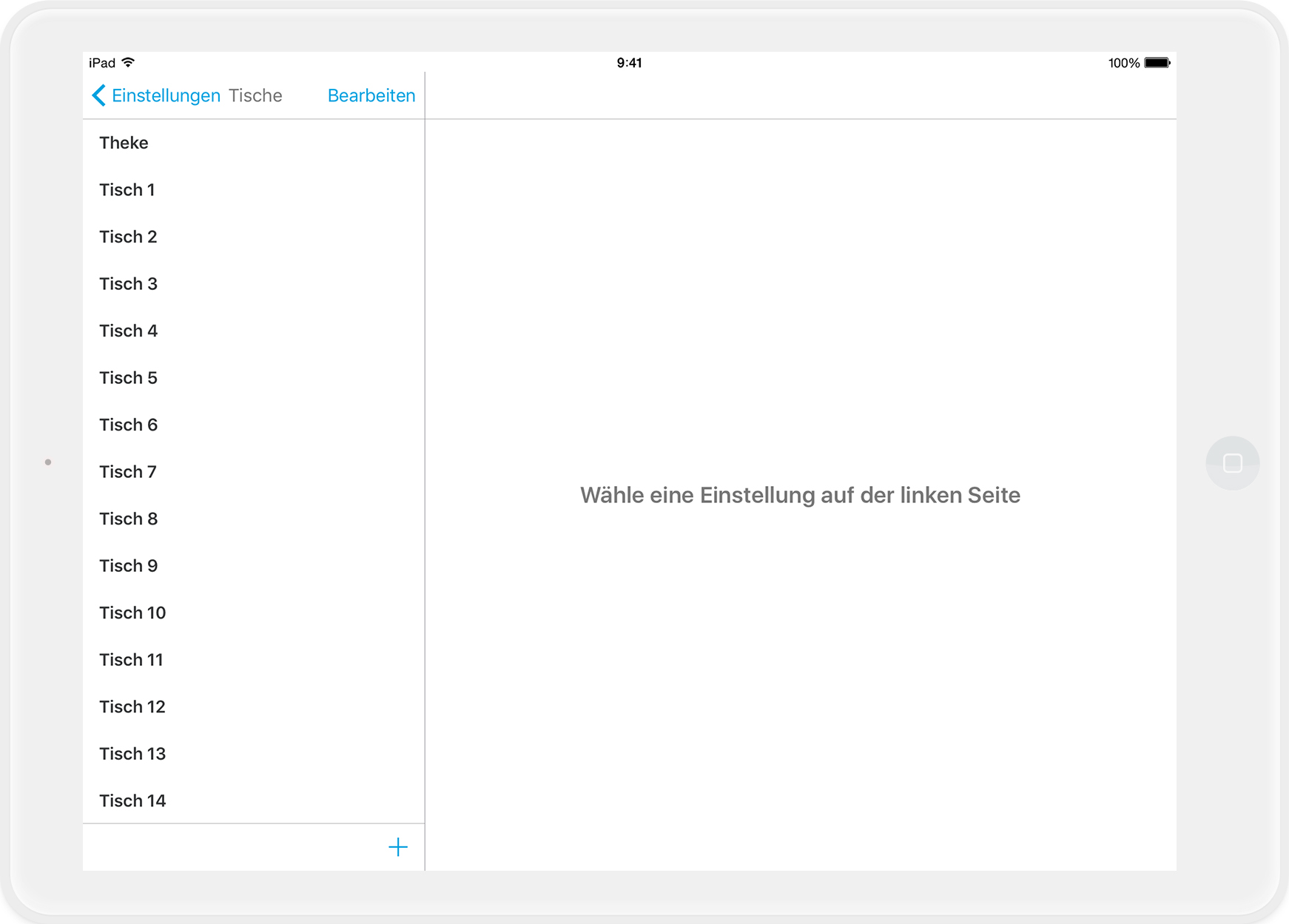
OBApp_5-4_DE_TischeVerwalten_1.jpg

Adding New Tables

To add a new table, tap the “+” at the bottom of the screen. The table properties will appear on the right, with the name reflecting the number of existing tables.
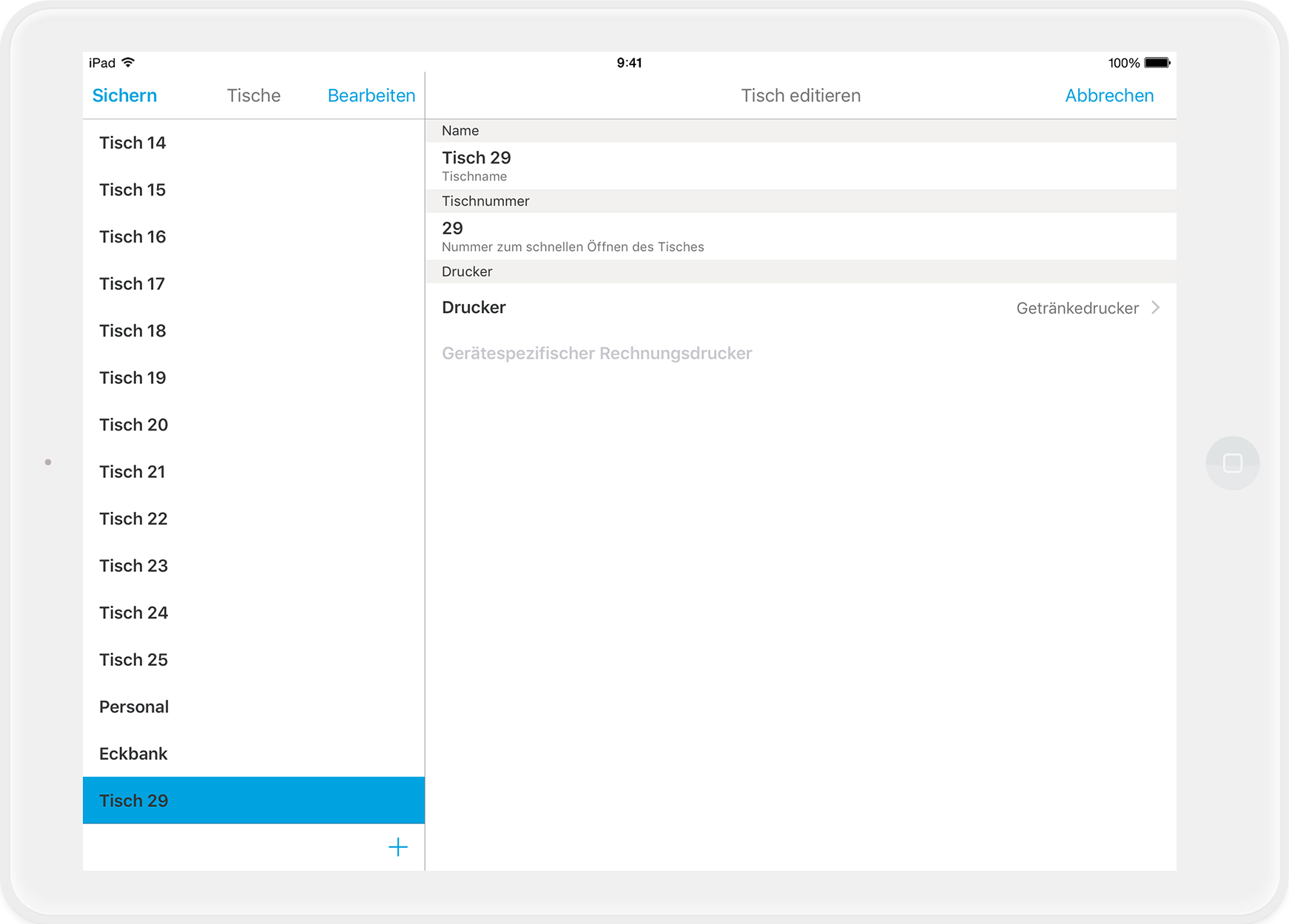
OBApp_5-4_DE_TischeVerwalten_2.jpg

Renaming Tables

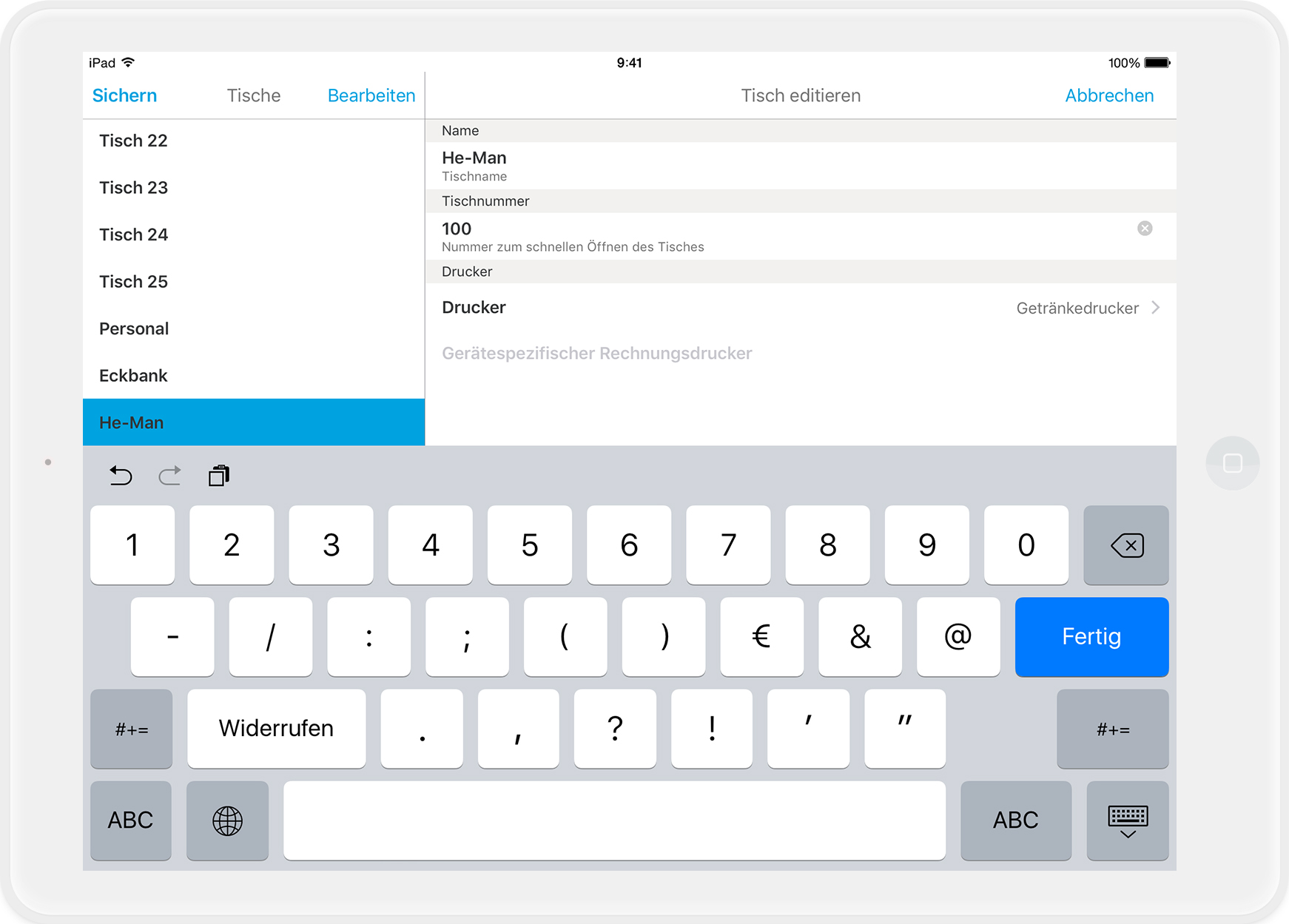
To rename a table, simply tap on the current name and make your changes. You can also modify an existing table by selecting it and adjusting the settings on the right as needed.

In the “Table Number” field (Tischnummer) below, input the number that you use to open a table in the order block. 
OBApp_5-4_DE_TischeVerwalten_4.jpg

Table and Printer: A Perfect Match

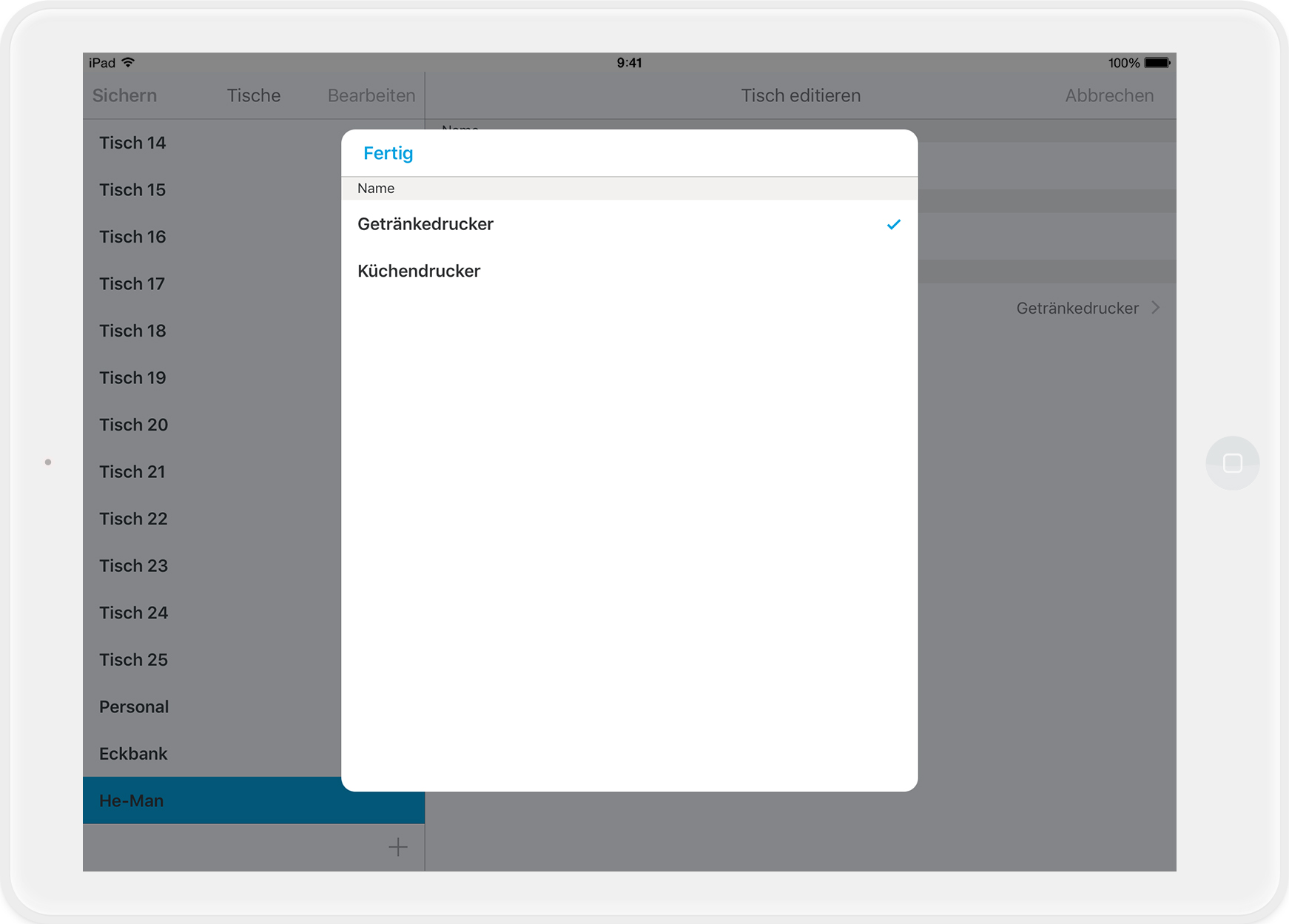
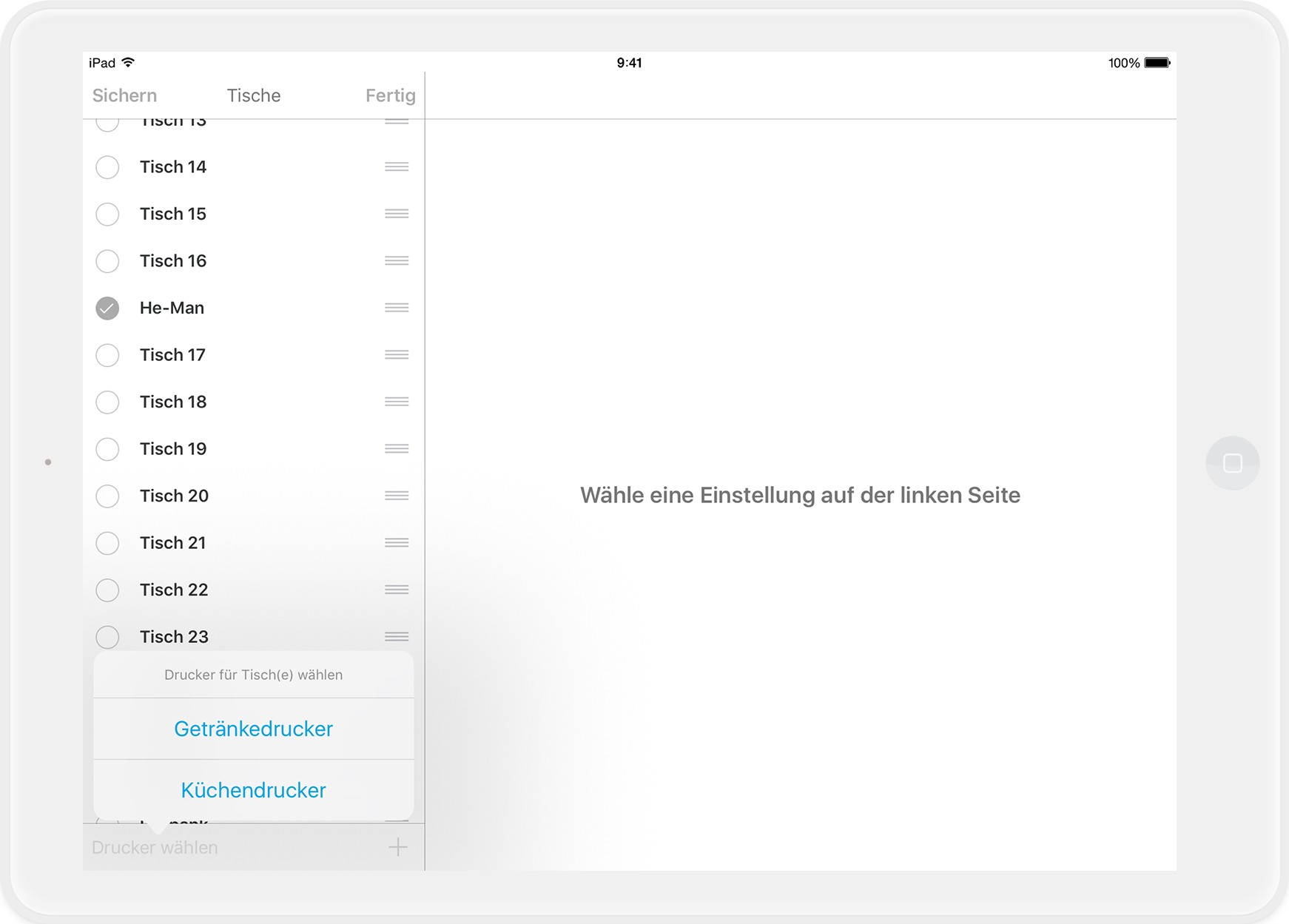
Below, you'll find the printer settings for the table. By default, the beverage printer is preselected. If you'd prefer invoices for this table to be printed on another printer, tap the printer icon and choose from your available printers. 
OBApp_5-4_DE_TischeVerwalten_5.jpg

Tipp: In "Edit Mode," you can select multiple tables using a blue circle and assign a printer to all of them simultaneously. Once you've completed moving tables or assigning printers, tap “Done” at the top. 
OBApp_5-4_DE_TischeVerwalten_10.jpg

Special Case: The Counter

The “Counter” table is automatically opened if you book an item in the order block without selecting a table first. Deleting this table also removes your default table, requiring you to select a table before booking an item.

Reordering Tables

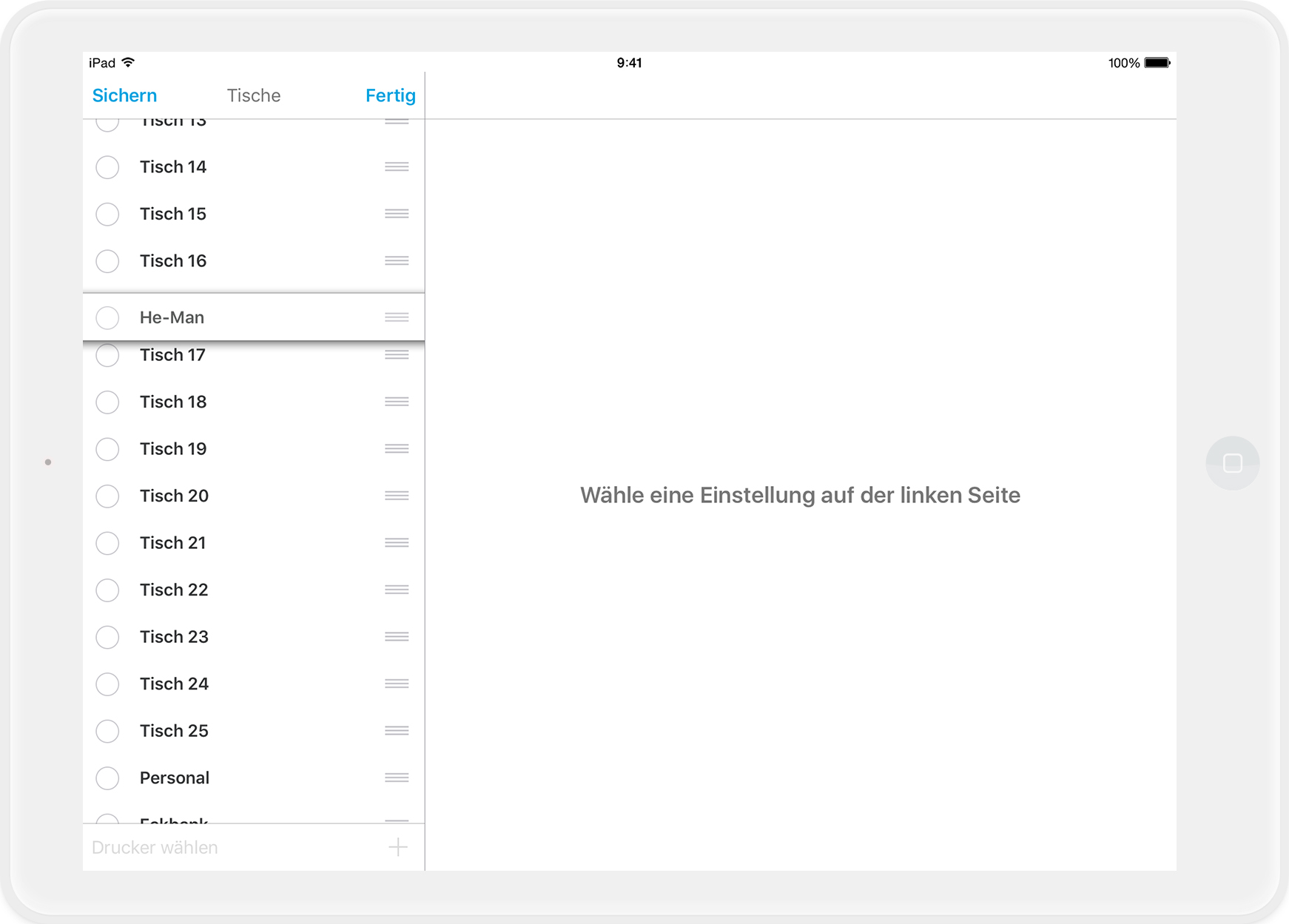
You can rearrange the tables in the list view to your preference. To do this, tap "Edit" at the top, hold the three gray lines next to the table, and drag it to your desired position. 
OBApp_5-4_DE_TischeVerwalten_6.jpg

Done? 

Once you’ve made all your changes, click “Save” at the top left. In the following window, confirm your action to apply the changes.


Any questions?

Why Do I Need to Close the Shift?

Adding new tables or changing table names is considered a change to master data. Such changes should only be made when no shift is open to ensure data consistency.

Table Plan Changes Outside of Shifts

It’s best to plan major adjustments to the table plan outside of an active shift.


What you can do, is moving, rearranging, or adjusting the shape of existing tables.

furniture organization table management

Was this article helpful?

Yes
No
Give feedback about this article

Related Articles

  • Working with the Floor Plan
030 208 983 098

About orderbird

With over 17,000 customers — restaurants, cafés, bars, clubs, and beer gardens — orderbird is one of the leading Point of Sales systems for the hospitality industry in Europe. With the mobile POS system orderbird MINI, orderbird also offers a smart cash register solution for service providers, retailers, mobile hospitality, and the crafts.

orderbird was founded in 2011 and today employs more than 120 people.

Address

orderbird GmbH
Ritterstraße 12
D-10969 Berlin
Phone: 030 208 983 098

Opening hours

Monday: 09:00 - 18:00
Tuesday: 09:00 - 18:00
Wednesday: 09:00 - 18:00
Thursday: 09:00 - 18:00
Friday: 09:00 - 18:00
Saturday: Closed (except emergency support)
Sunday: Closed (except for emergency support)


© 2026 orderbird GmbH
  • Imprint
  • Privacy Policy
  • Legal Notice
Expand