Contact Us

If you still have questions or prefer to get help directly from an agent, please submit a request.
We’ll get back to you as soon as possible.

Please fill out the contact form below and we will reply as soon as possible.

  • Knowledge Base MINI
  • Contact us
English (US)
US English (US)
DE German
  • Home
  • Expand your orderbird PRO
  • orderbird PRO Cashbook
  • Your daily interaction with your orderbird cashbook

Who has access to the cashbook?

Written by Jens B.

Updated at June 1st, 2023

Contact Us

If you still have questions or prefer to get help directly from an agent, please submit a request.
We’ll get back to you as soon as possible.

Please fill out the contact form below and we will reply as soon as possible.

  • First Steps
    Hello new Bird! About your Apple devices Step 1: How to set up your network Step 2: MY orderbird Step 3: How to install and set up the app Step 4 - How to serve your first guest Step 5 - Card payment with orderbird PRO
  • Working with orderbird PRO
    Working Settings Fiscalization in Austria (RKSV) "Kassensicherungsverordnung" in Germany orderbird PRO - Versions and Updates
  • Card payment
    Your start with card payment with orderbird PRO and Worldline Your start with card payment with orderbird PRO and Nexi Germany Your start with American Express Working with orderbird card payment Pay Terminal Plus (WiFi card reader) Pay Terminal One (Bluetooth card reader) Card payment on the smartphone
  • Analyze your sales
    Reports on orderbird PRO The DATEV export Reports on MY orderbird
  • Printer & Network
    Printer Network
  • Expand your orderbird PRO
    orderbird PRO Cashbook orderbird Gift Cards Bestellmanagement
  • MY orderbird - Your orderbird business account
    Your account settings on MY orderbird
+ More

Table of Contents

Step by step Give/Deny access to the cash book Why am I asked for the admin password when I want to access the cashbook?

From orderbird app version 6.1.1 on, you can precisely control who has access to your Cash Book. The default setting allows only for the administrator to see the Cash Book and create new entries.

Step by step

Give/Deny access to the cash book

  1. In the orderbird app go to Settings > Users > Roles & Permissions.
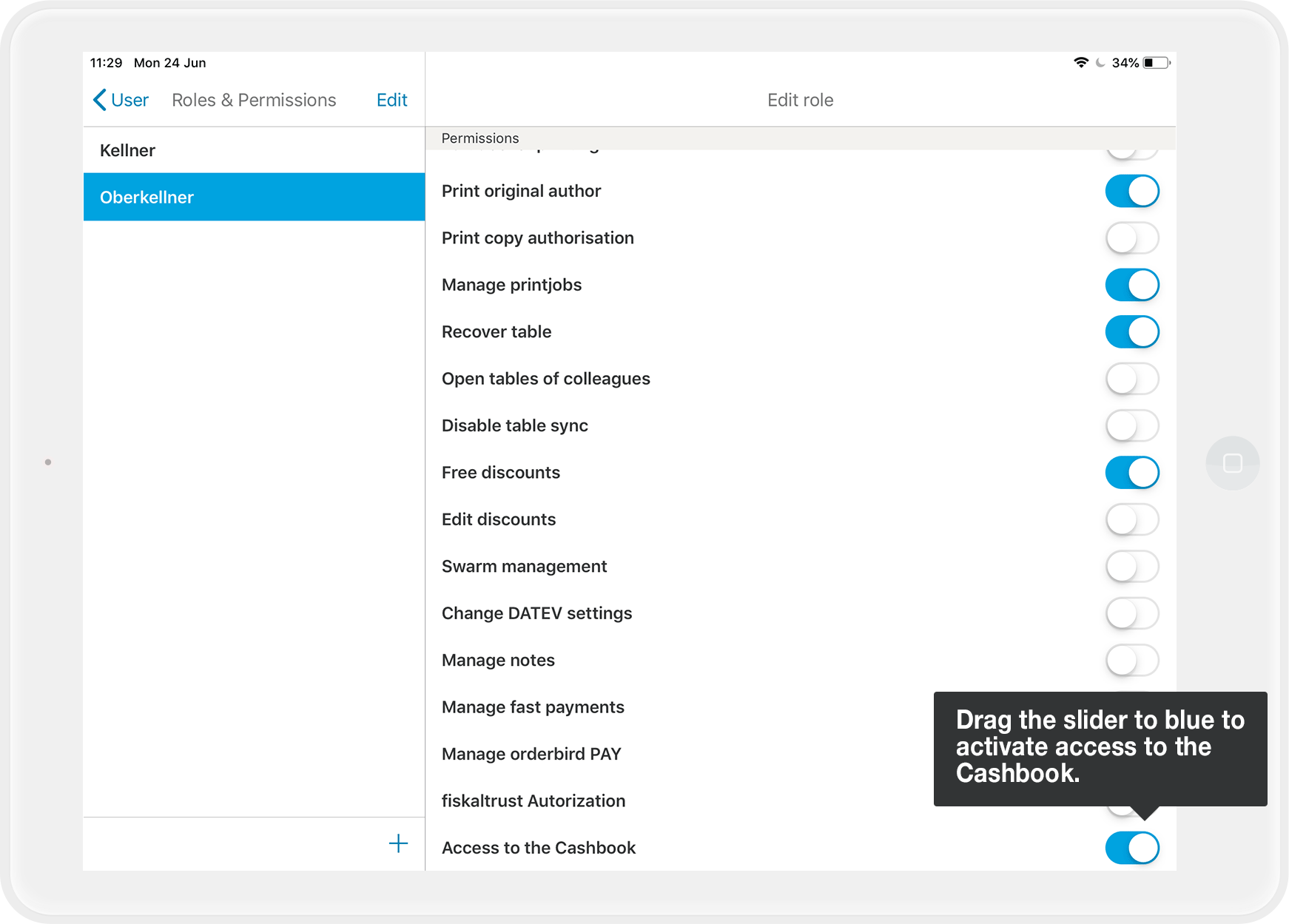
  2. Select the role for which you want to activate or deactivate the right to use the Cash Book.
  3. Scroll to the end of the rights list and drag the slider to the right at "Access to the Cashbook" to grant access. If the right is activated, every user in this role can access the cash book and also enter cash income and withdrawals as well as Balance the cash or close the day.
    EN_App_V6.1.1_CashbookRights.png
  4. Save your settings by tapping on "Save" in the upper left corner and confirm.

Why am I asked for the admin password when I want to access the cashbook?

If you are asked for the admin password, you do not have the right to access the cashbook (anymore). In this case, an administrator of the cash register must grant you one-time access to the cash book - or alternatively set the right permanently in the Roles & Rights settings.

authorized personnel cashbook accessibility

Was this article helpful?

Yes
No
Give feedback about this article

Related Articles

  • What if there is no paper receipt for an entry?
  • How do I enter cash income in the cash book
  • How can I provide individual pages of my cash book to my tax advisor or for a financial audit?
  • How can I correct wrong entries or forgotten entries?
030 208 983 098

About orderbird

With over 17,000 customers — restaurants, cafés, bars, clubs, and beer gardens — orderbird is one of the leading Point of Sales systems for the hospitality industry in Europe. With the mobile POS system orderbird MINI, orderbird also offers a smart cash register solution for service providers, retailers, mobile hospitality, and the crafts.

orderbird was founded in 2011 and today employs more than 120 people.

Address

orderbird GmbH
Ritterstraße 12
D-10969 Berlin
Phone: 030 208 983 098

Opening hours

Monday: 09:00 - 18:00
Tuesday: 09:00 - 18:00
Wednesday: 09:00 - 18:00
Thursday: 09:00 - 18:00
Friday: 09:00 - 18:00
Saturday: Closed (except emergency support)
Sunday: Closed (except for emergency support)


© 2026 orderbird GmbH
  • Imprint
  • Privacy Policy
  • Legal Notice
Expand