Contact Us

If you still have questions or prefer to get help directly from an agent, please submit a request.
We’ll get back to you as soon as possible.

Please fill out the contact form below and we will reply as soon as possible.

  • Knowledge Base MINI
  • Contact us
English (US)
US English (US)
DE German
  • Home
  • Working with orderbird PRO
  • Working
  • Working with several devices or with only one - this is how you set yourself up well

Starting Fallback Mode

Learn strategies to transition your business into fallback mode quickly and effectively while keeping disruption to a minimum.

Written by Jens B.

Updated at March 26th, 2025

Contact Us

If you still have questions or prefer to get help directly from an agent, please submit a request.
We’ll get back to you as soon as possible.

Please fill out the contact form below and we will reply as soon as possible.

  • First Steps
    Hello new Bird! About your Apple devices Step 1: How to set up your network Step 2: MY orderbird Step 3: How to install and set up the app Step 4 - How to serve your first guest Step 5 - Card payment with orderbird PRO
  • Working with orderbird PRO
    Working Settings Fiscalization in Austria (RKSV) "Kassensicherungsverordnung" in Germany orderbird PRO - Versions and Updates
  • Card payment
    Your start with card payment with orderbird PRO and Worldline Your start with card payment with orderbird PRO and Nexi Germany Your start with American Express Working with orderbird card payment Pay Terminal Plus (WiFi card reader) Pay Terminal One (Bluetooth card reader) Card payment on the smartphone
  • Analyze your sales
    Reports on orderbird PRO The DATEV export Reports on MY orderbird
  • Printer & Network
    Printer Network
  • Expand your orderbird PRO
    orderbird PRO Cashbook orderbird Gift Cards Bestellmanagement
  • MY orderbird - Your orderbird business account
    Your account settings on MY orderbird
+ More

Table of Contents

⚠️ Use Only in Absolute Emergency ⚠️ In a nutshell Video Guide 💡 Step 1: Checked Solutions? 🚨 Step 2: Start Fallback Mode 🚫 Disable "Table Synchronization" ↔️ Start Table Assignment ✅ Confirm Start of Fallback Mode Good to Know

⚠️ Use Only in Absolute Emergency ⚠️

The Fallback Mode is only for absolute emergencies, when nothing else works, and everything is falling apart! First, check these 4 tips to avoid using Fallback Mode: Preparing Fallback Mode.


In a nutshell

  1. 💡 Tried to apply orderbird PRO's solutions
  2. 👁️ Understood possible limitations
  3. 🚨 Start Fallback Mode
    1. 🚫 Disable "Table Synchronization"
      The app will guide you through the steps and enter Fallback Mode.
    2. ↔️ Perform Table Assignment
      Assign each open table to one specific device.
    3. ✅ Continue Working Without Table Synchronization
      Work with multiple devices in Fallback Mode without table synchronization.

Video Guide

Start Fallback Mode and Perform Table Assignment in under 7 minutes:


💡 Step 1: Checked Solutions?

✅ You’ve checked the four orderbird PRO's solutions and cannot avoid using Fallback Mode.

✅ You understand that there will be possible limitations in your business operations.


🚨 Step 2: Start Fallback Mode

🚫 Disable "Table Synchronization"

  1. orderbird PRO Main Menu > Swarm > "Disable Table Synchronization". 
    Repeat this on every device! 

    IMG_0112.PNG
  2. Follow orderbird PRO’s instructions, tap on "Start Table Assignment". 
    IMG_0113.PNG

↔️ Start Table Assignment

  1. Place all devices side by side and tap on "Start comparing".
    IMG_0115.PNG
  2. ⚠️ From this point, you can no longer cancel! ⚠️
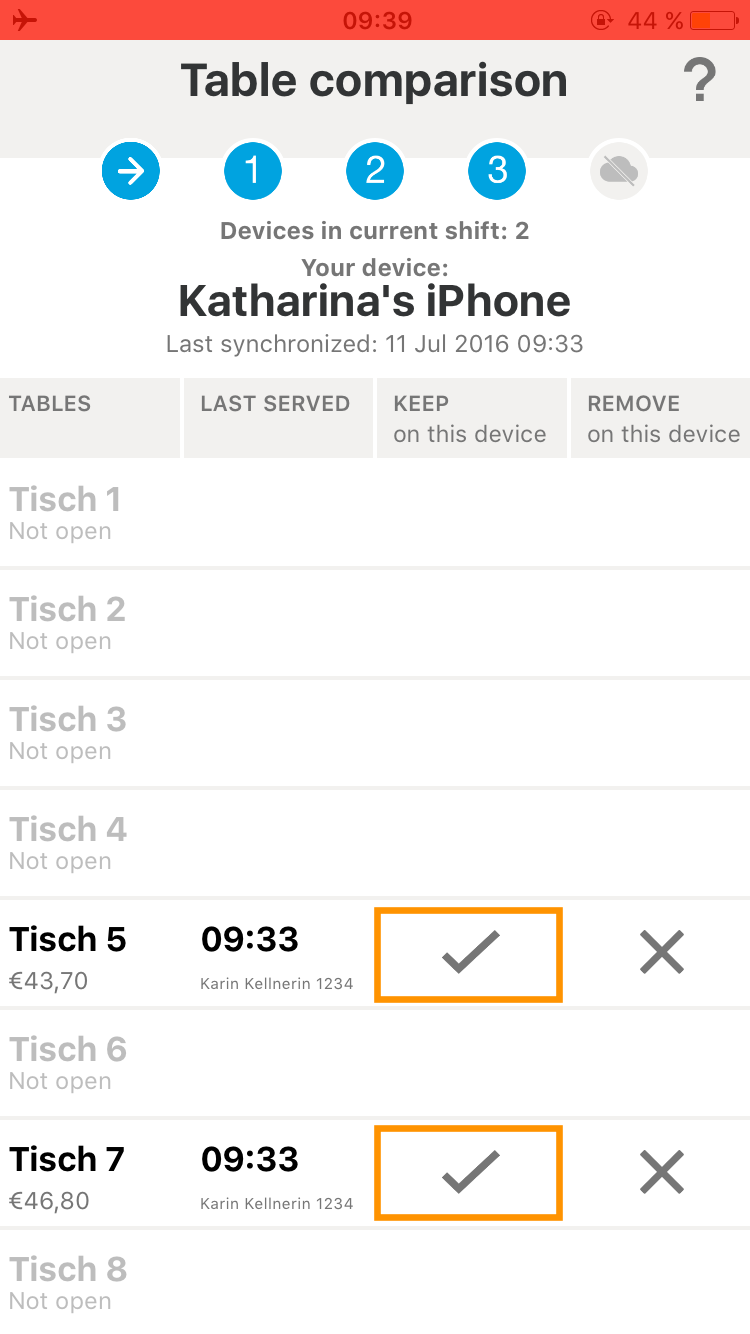
  3. Assign each open table to a device to ensure proper billing.
    • 📋 Go through the entire table list.
    • 🎯 Select the tables that should remain on the device (usually the one with the last booking).
    • ✅ Check to keep or ❌ uncheck to delete.
  4. 🔍 Verify that each open table is assigned to exactly one device.
    Example: The order from "Theke" ("bar") is assigned to the device named "Kat's iPad", while the orders from “Tisch 5” and “Tisch 7” are assigned to the device named "Katharina's iPhone".
iPad
IMG_0118.PNG
iPhone
IMG_3328.PNG

✅ Confirm Start of Fallback Mode

Tap "Work Offline Now" to enter Fallback Mode.
IMG_0119.PNG


Good to Know

  • 🛠️ Everything related to troubleshooting Fallback Mode can be found here: ➜ Troubleshooting Fallback Mode 
  • ⏹️ Here’s how to exit Fallback Mode: ➜ Exit Fallback Mode
contingency plan backup mode

Was this article helpful?

Yes
No
Give feedback about this article

Related Articles

  • How to activate Swarm
  • Preparing Fallback Mode
  • Exit Fallback Mode
  • What works in Fallback Mode — and what doesn’t
  • Troubleshooting Fallback Mode
030 208 983 098

About orderbird

With over 17,000 customers — restaurants, cafés, bars, clubs, and beer gardens — orderbird is one of the leading Point of Sales systems for the hospitality industry in Europe. With the mobile POS system orderbird MINI, orderbird also offers a smart cash register solution for service providers, retailers, mobile hospitality, and the crafts.

orderbird was founded in 2011 and today employs more than 120 people.

Address

orderbird GmbH
Ritterstraße 12
D-10969 Berlin
Phone: 030 208 983 098

Opening hours

Monday: 09:00 - 18:00
Tuesday: 09:00 - 18:00
Wednesday: 09:00 - 18:00
Thursday: 09:00 - 18:00
Friday: 09:00 - 18:00
Saturday: Closed (except emergency support)
Sunday: Closed (except for emergency support)


© 2026 orderbird GmbH
  • Imprint
  • Privacy Policy
  • Legal Notice
Expand