Menu Editing

Table of Contents
Menu editing
You can easily customize your menu matching your own expectations. The menu is divided into three fixed Super Family Groups (SFG). From here you can set up and change everything yourself. If you let us create your menu, you only need to install the finished backup and you are ready to go! But even then, you can still make changes yourself at any time. You can set up family groups and items, you can change prices and tax rates and decide if a family group or item will show up in the orderpad or will be printed on the receipts. The most important thing up front: If you want to make changes, all tables and open shifts have to be closed.
New set up - always click on the plus icon "+"
You want to set up a new family group or a new item? No problem, just click on the symbol with the Plus in the lower right corner. A new window will show up. The Super Family Groups (SFG) should divide the items and are therefore easier to find. They are unchangably set up. There are three Super Family Groups (SFG): Beverages, Meals, Misc.
Set up new family group:
Click on the Plus (+) and a new window will show up
Here, you can fill in the following:
- Name
- Assigned to Super Family Groups (SFG)
- Price
- Tax rates - in-house or take-away
- Printer (here you can decide all items of the particular family group that will be printed on which printer)
- Set up various items (activate this function and it will show up a various item button in this family group where you can select amname and price)
- Display in the menu (here you can decide if the whole family group will show up in the menu. This is very efficient with seasonal items (e.g. Asparagus-Menu)
You can simply move your family groups within the Super Family Groups (SFG) to show them where you want them to be, all that is done in the settings of your menu. If you click on “edit”, you can change the order of your family groups just by moving them. Tip right on the three horizontal grey lines at the end of the row and move your family group to the requested position!
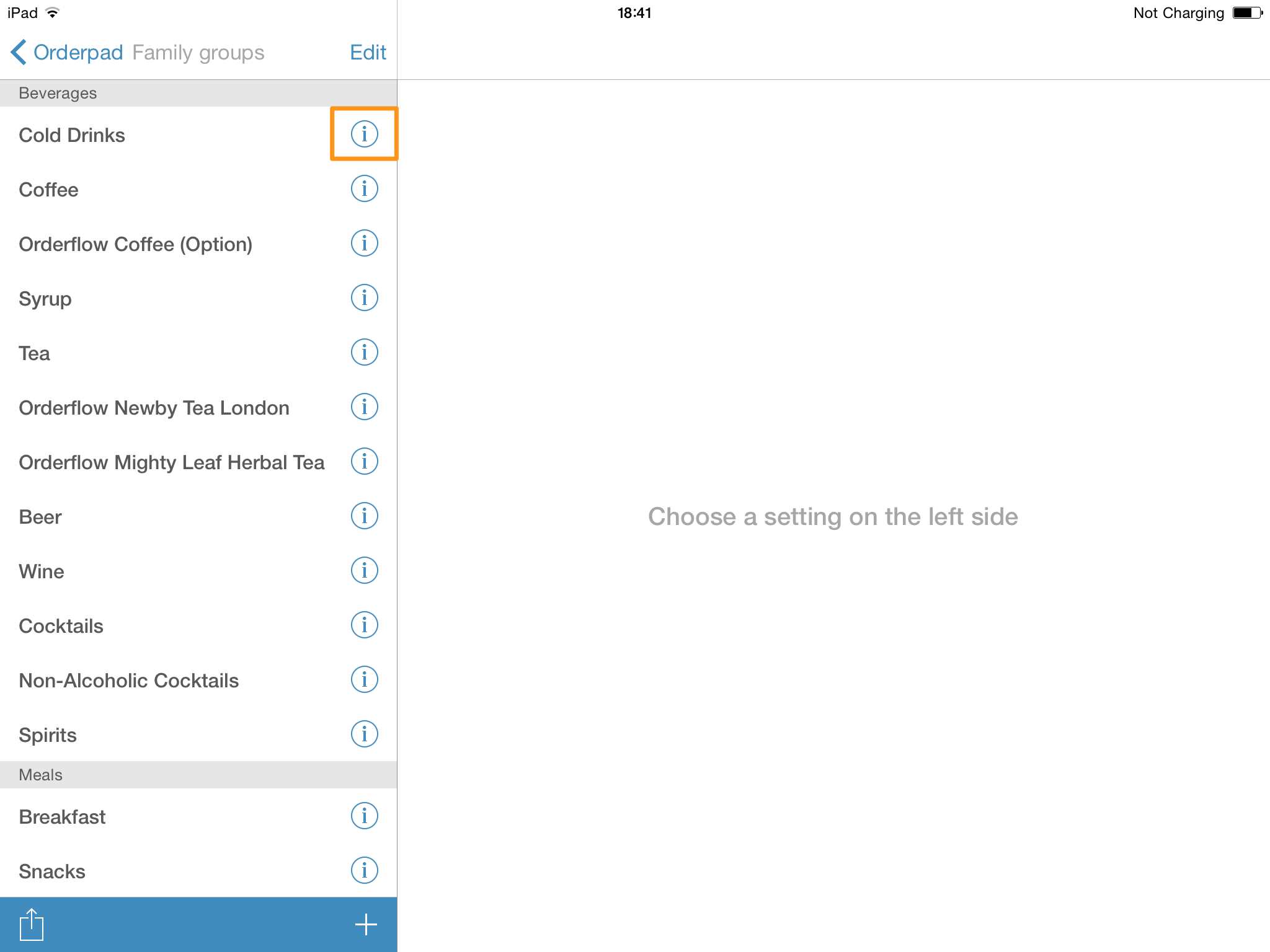
If you want to edit an exisiting family group, you have to click on the blue info button of the family group name on the right side to get back to settings. By clicking on the name of the particular family group, you will directly go to the single items.
Set up item
here you exactly proceed like setting up a family group. To reach the item layer, you have to go settings → menu → and click in the middle of the family group, where you want to show the articles. Click on the Plus (+) in the right corner to set up new.
Edit item
Here you can change the following:
- Name
- Attribution of family group
- PLU (Price Look Up Number - can not be longer than four characters)
- Price
- Inherit price (the item gets the price, if it is already filled in the family group)
- Tax rates: in-house or take-away
- Inherit tax rates (prepopulated tax rates will be assigned to new family groups)
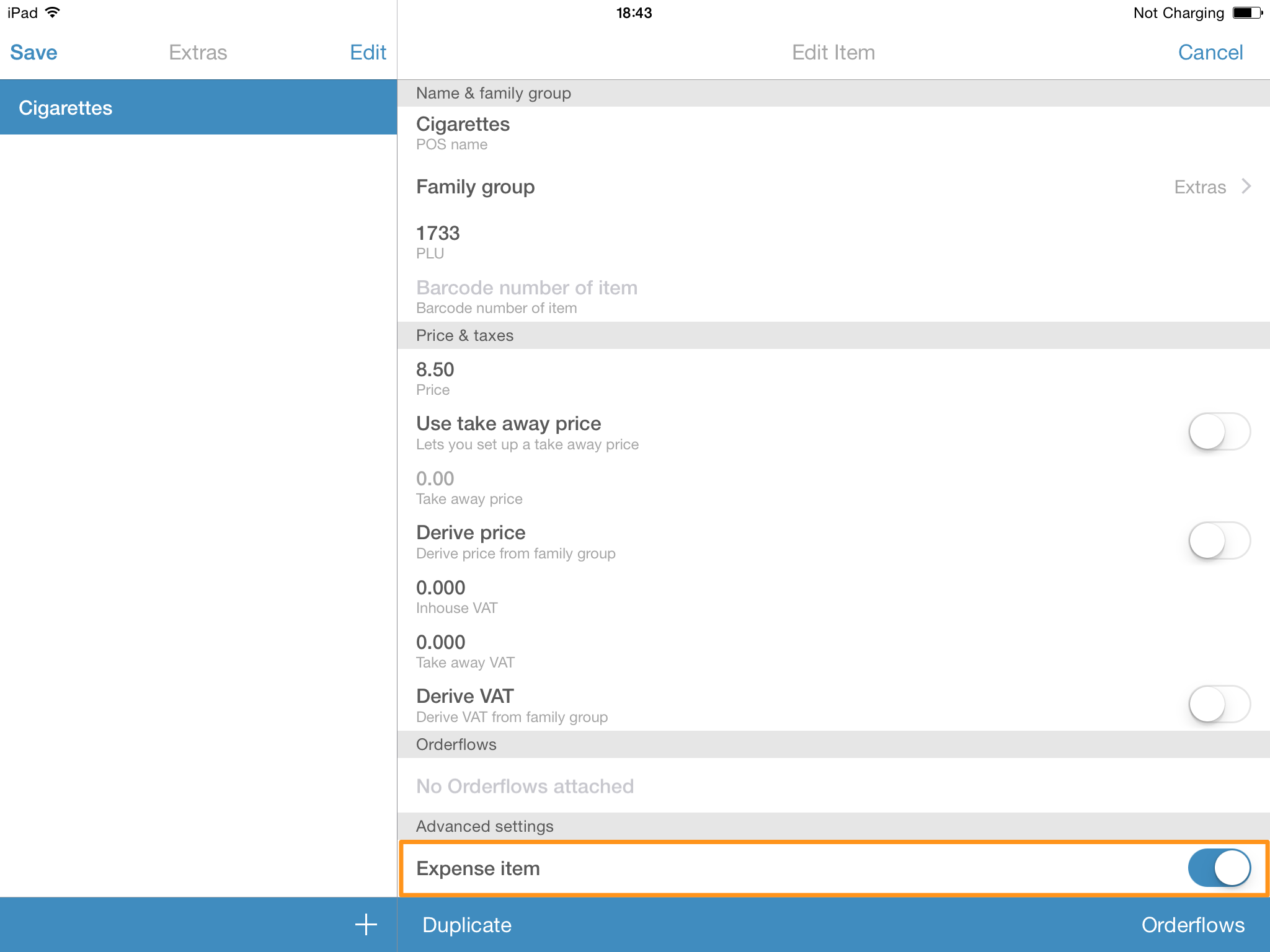
- Expense items (e.g. cigarettes, without sales tax9
- Favorite (if you activate this function, you can show your item in your list of favorites)
- Showing in the menu
- Printing on bons (decide individually for every item, if you want to print it on your ordering bon)
Modify family groups and items:
Just click on the blue info button at the end of the row. Then you can change every mentioned item. If you want to delete a family group or an item, swipe over it hoizontally and click delete.
Duplicate items
You can duplicate an already set up item. Just click on the item you want to duplicate and select “make copy” in the upper right corner. This is especially helpful, if you want to sell items at different occasions and you want them to have different settings. If you have a happy hour, you can set up a separate family group and place the copied item in the new family group.
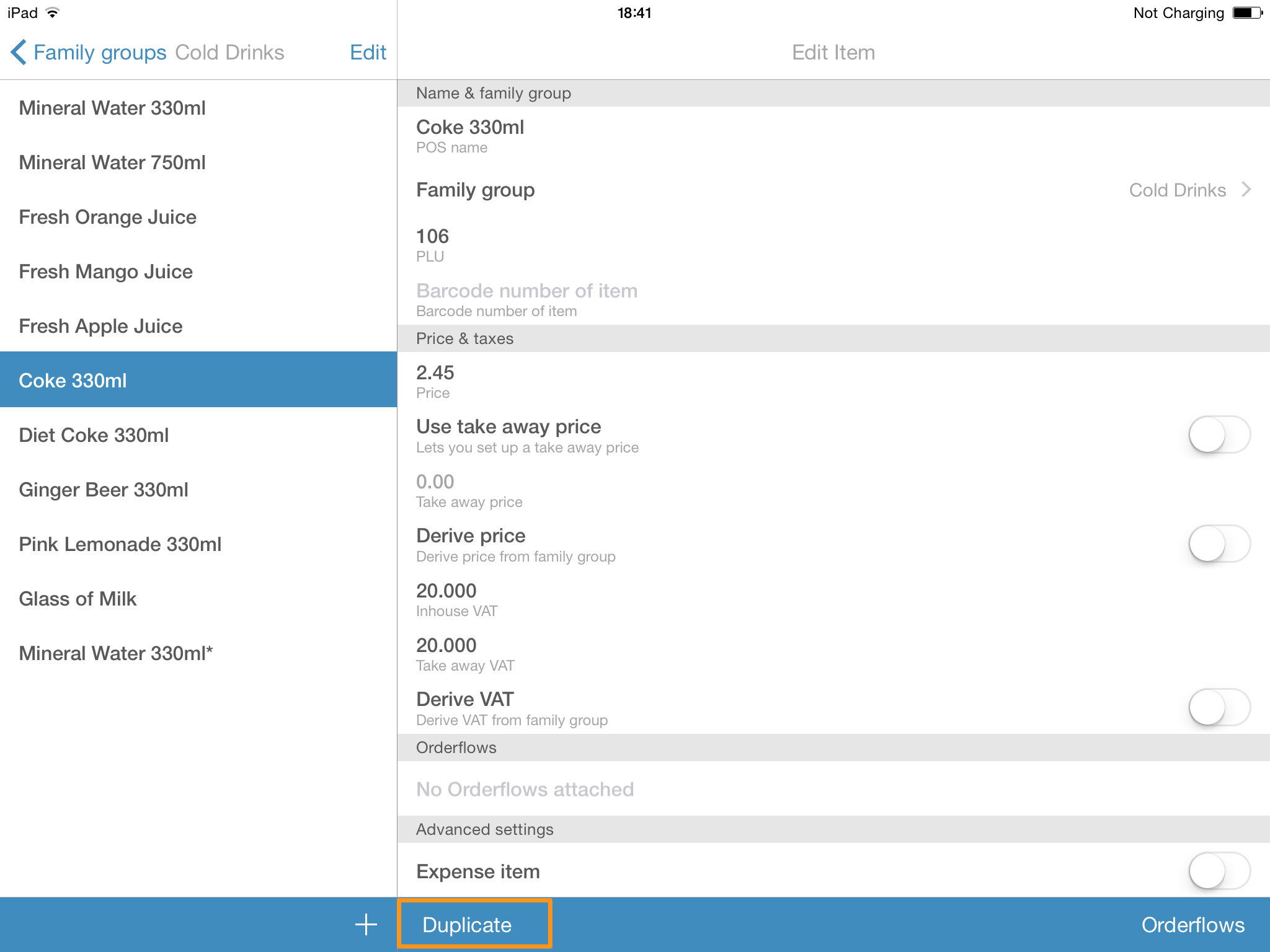
The copied item shows up in the family group and is tagged with a star (*). Now you can select and edit it.
Various items - individual prices
Every now and then, guests order an item, that is not on the menu and that does not have a fixed price. Therefore, you can set up a so-called “various item” in every family group, that is then given an indivdual price .
If you now select this “various item”, a window will pop up and you can type in the price in the first row and (just like the option in the ordering process) leave a note in the second row, which shows up in the pruction bon.

Consider, that
- you can only set up one “various item” per family group
- this item can not be tagged as an expense item
- the note does not show up in the report or the guest´s bon
- this item reveals as various (name of family group) on the bon and in the report
Expense item
Expenses are known as funds, that are being payed by someone in advance. If you now get items for your guests, that you actually don´t sale, like cigarettes, you obviously want to get your money back, so your checkout works out in the end of the day.
The cigarettes, that you payed in advance, will only be handed in by you. So if you do not sell them or make profit out of them, the smoker payes the sales tax directly to the kiosk you got the cigarettes from.
To register this display and to give your guest the correct bill, you can naturally use orderbird POS.
- You just set up an item “cigarettes” (or any other item)
- Set a checkmark at the expenses items
This (re)sale is therefore not part of your revenue, but will be registered in your report under expenses.