How do I change the price of an item?

Table of Contents
You can easily and quickly adjust the prices and names of items yourself on your Apple device in orderbird PRO. There are two options: the legally safest method and one for when you need to act quickly.
Want to legally change the price? Create a new item!
The legally safest option - create a new item
The legally safest option, which we also recommend, is to always create a new item when changing the price of an existing one. This way, your sales records remain clear, and you can easily prove the exact pricing of an item over time. You can find out how to do this right here:
How do I create new items for my menu?
With orderbird you can easily create items yourself and thus always keep your menu up to date - without spending a lot of time and complicated settings. In order to create an article, you must be in the corresponding product group in which the article should appear.
In a Nutshell - the most important things
- To create items, always tap on the plus sign "+" in the bottom left of the corresponding menu.
- If you want to delete something, swipe from right to left over the corresponding item. This works anywhere in the app.
- To change the order of a list, tap Edit in the top left. Then tap on the sign of the three gray lines, keep your finger pressed and move the article or product group to the new position with your finger.
Don't feel like reading? Here's a video
In two and a half minutes, Sarah will show you how to create a new item in your menu (German audio).
Here we go!
Do not use emojis and only use Latin characters in names
Do not use emojis and only use Latin characters in names.
Please note that you should only use Latin characters and special characters in orderbird PRO! You can also use German special characters like ä, ö, ü, and ß as well as special characters from Romance-Nordic languages like é, è, â, ø, or å, etc.
These are not supported:
- Emojis like 😊, 🍷, 🥗, 🥯, …
- Cyrillic script
- Arabic script
- Chinese script
- Thai script, and
- Japanese script.
Using characters from the aforementioned scripts can disable orderbird PRO :(!
- Go to Settings > Order block > Menu and select the product group for which you want to create a new item. Press the plus sign at the bottom left to create a new article. In this example, I would like to create my first article in my new product group, "Regional Beers".

- A window will now open on the right-hand side, in which you can specify all the relevant settings for the item. The most important points are:
- Item Name - Enter the name of the item here as you want it to appear on the invoice.
- Product group - Here you can briefly check whether you are in the right product group.
- PLU - If you have a PLU for the item, enter it here. (PLU doesn't tell you anything? Then you don't need this field ;-) )
-
Price - Enter the price including taxes

-
Inherit tax rates - The displayed tax rates are not correct? Then slide the slider to gray and adjust the tax rates for in-home and out-of-home.
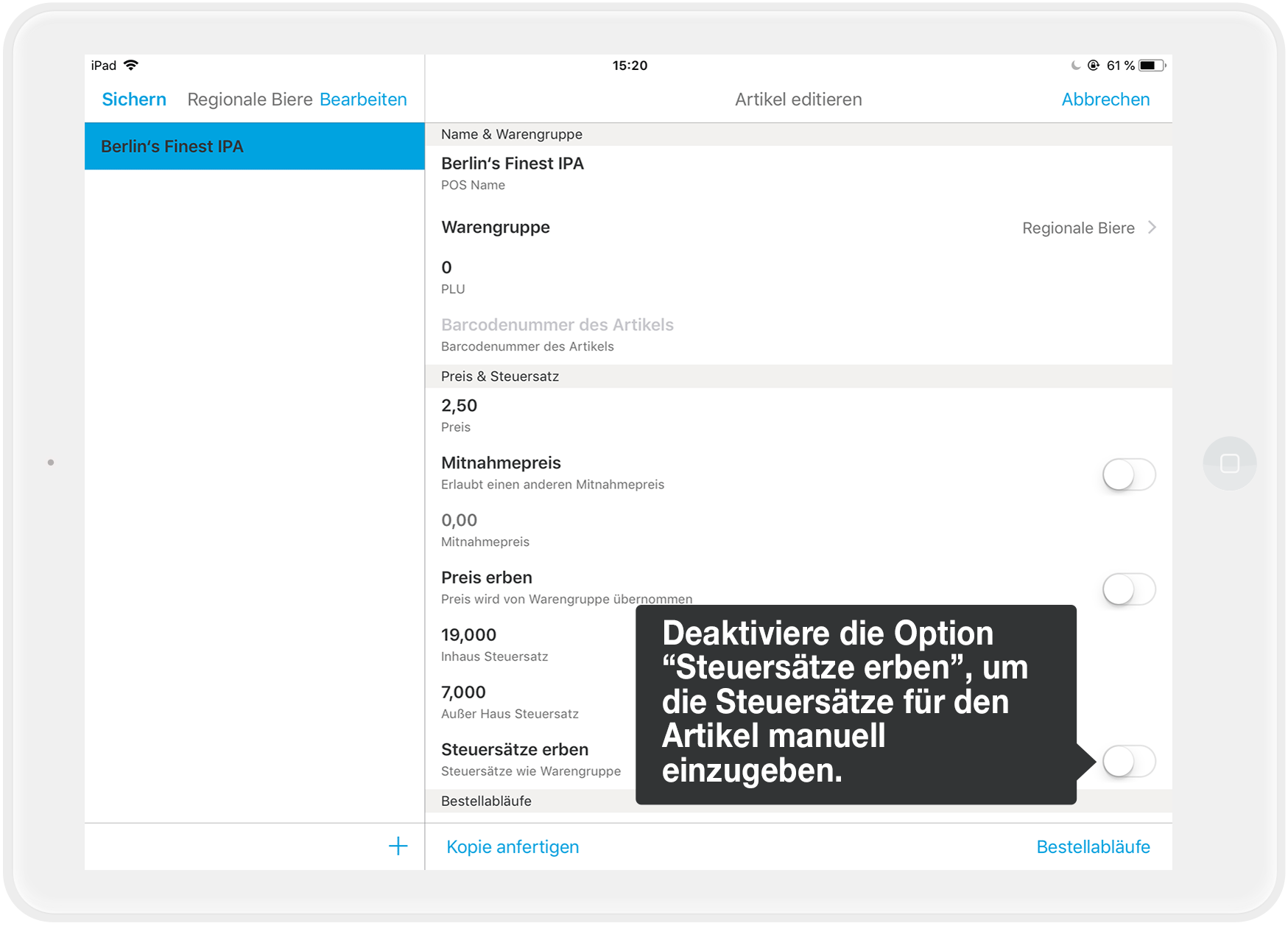
- Finished? Then press "Save" in the top left to finalize your changes.
- Done
Tips
- With "Display in menu" you can determine whether the item should be available for selection in the menu. This is useful for seasonal items. So you can easily activate or deactivate the article, depending on the season.
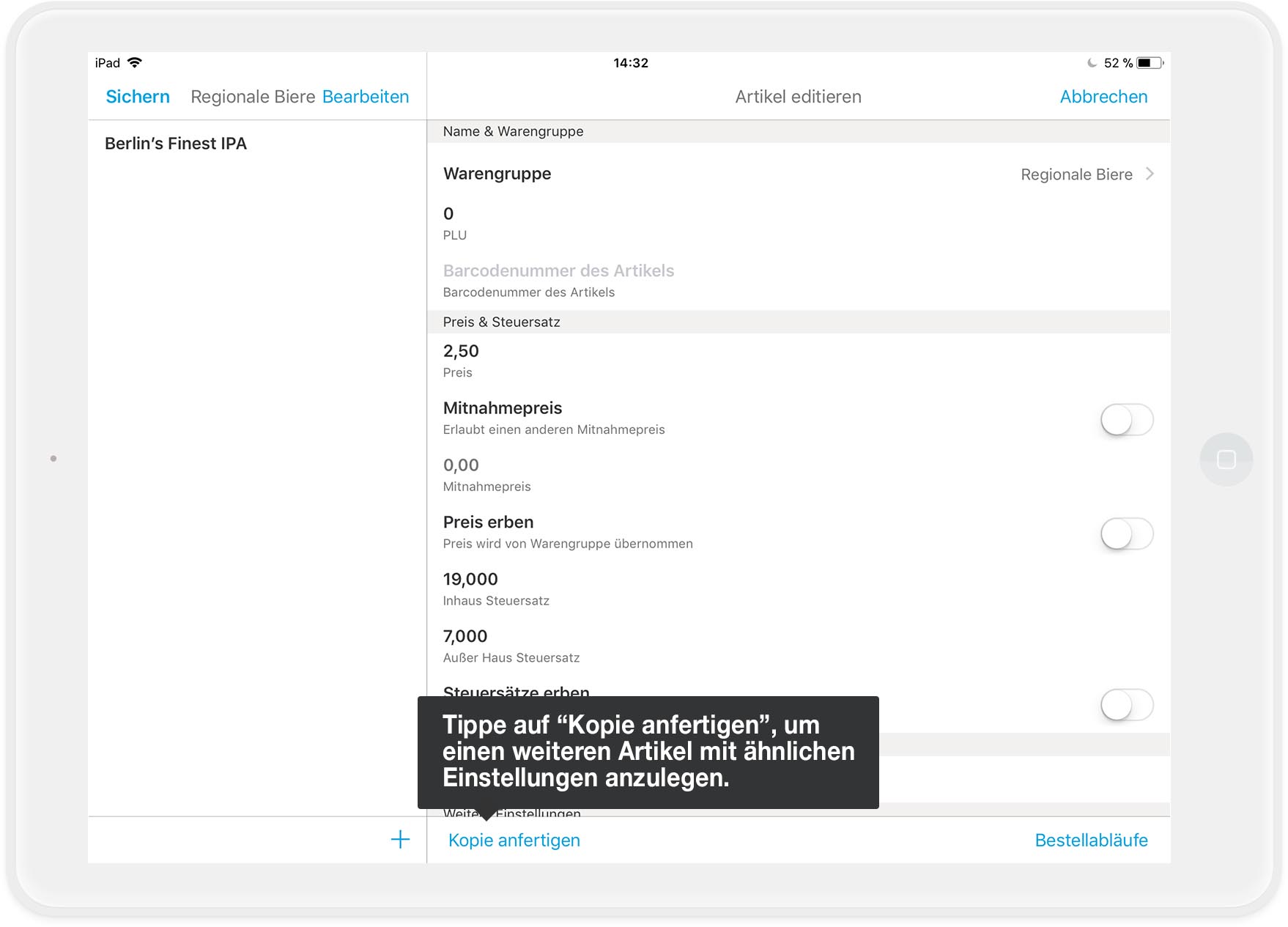
- You can also tap the plus sign in the bottom right again to create another item. And if you're a pro, use the "Make a copy" field if you want to create a new article that's only slightly different from a previous article.
Questions?
When should I change an item, and when should I create a new item?
In short: Create a new item for every price or name change to stay on the safe side.
Detailed Response: How do I change the price of an item?
Please note: No changes in an open shift
Thou shall not make changes during an open shift
Quickly adjusting the price of coffee? Or changing an order flow? No problem, but please not during an open shift!
There are several reasons for this: changes during an active shift...
- ... can ruin your reports.
- ... are not compliant with tax regulations because you have an item with different prices within a single shift.
- ... can lead to technical issues and disrupt your workday unpleasantly.
Avoid the following changes during an open shift:
- items/family groups (including prices and tax rates)
- order flow
- roles, permissions, and users
- payment methods
- deleting printers
Additionally, avoid making simultaneous changes in MY orderbird and orderbird PRO outside a shift.
The golden rule
Always make changes to your menu during a closed shift and either on MY orderbird or directly in orderbird PRO, not simultaneously in both products! This way, you stay on the safe side.
Alternative: Quickly change the price - adjust the price of an existing item
If you need to act quickly - adjust the price of an item
If you're in a hurry, you can also change the price of an existing item if necessary. However, keep in mind that this will alter your sales statistics, which might then appear "incorrectly calculated." Learn more about this further down: How does my sales statistic change when I modify an item? You will then need to use the GDPdU/GoBD export to prove to the tax authorities when an item had a specific price or was part of your assortment. This process will be time-consuming.
In a nutshell
- Make sure that your shift is closed.
- Go to Settings > Order pad > Menu > Your desired family group > Your desired item
- Tap on "Price"
- Change the price
- Save & Done
Step by Step - Updating the price of an item
- Open the orderbird app.
- Tap on "Settings" in the main menu,
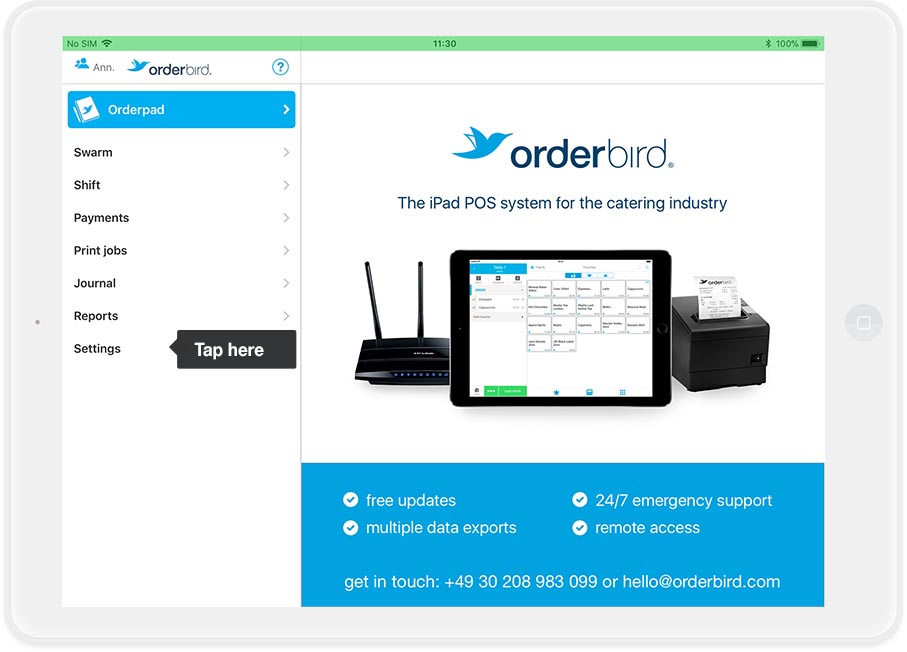
… then on ”Orderpad”.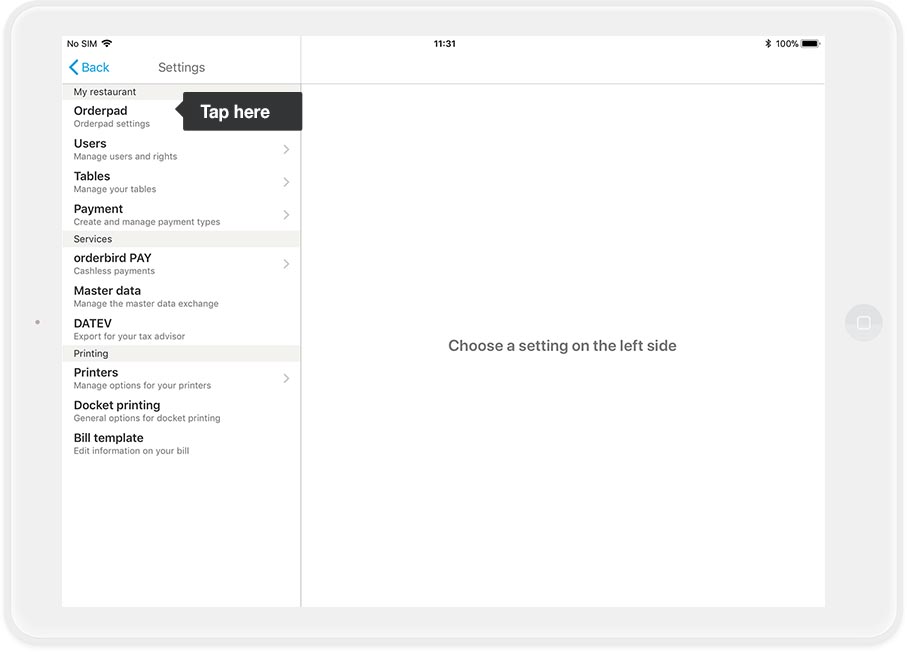
… and now on "Menu Card".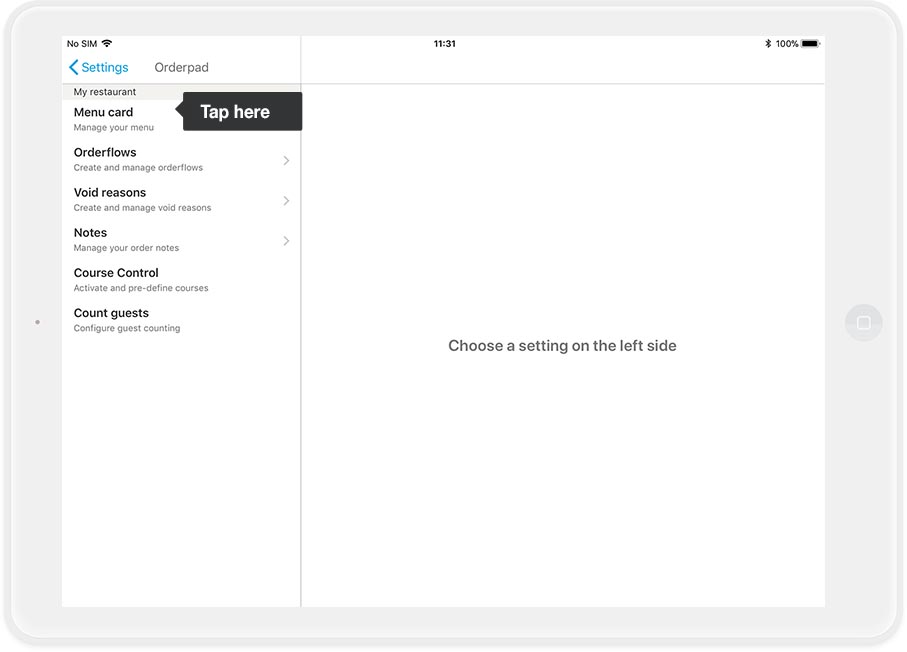
- Here you can see a list of your family groups.
- Next, select the family group (category) where the item for which you want to change the price is located.
In this example, it is the family group "Beer":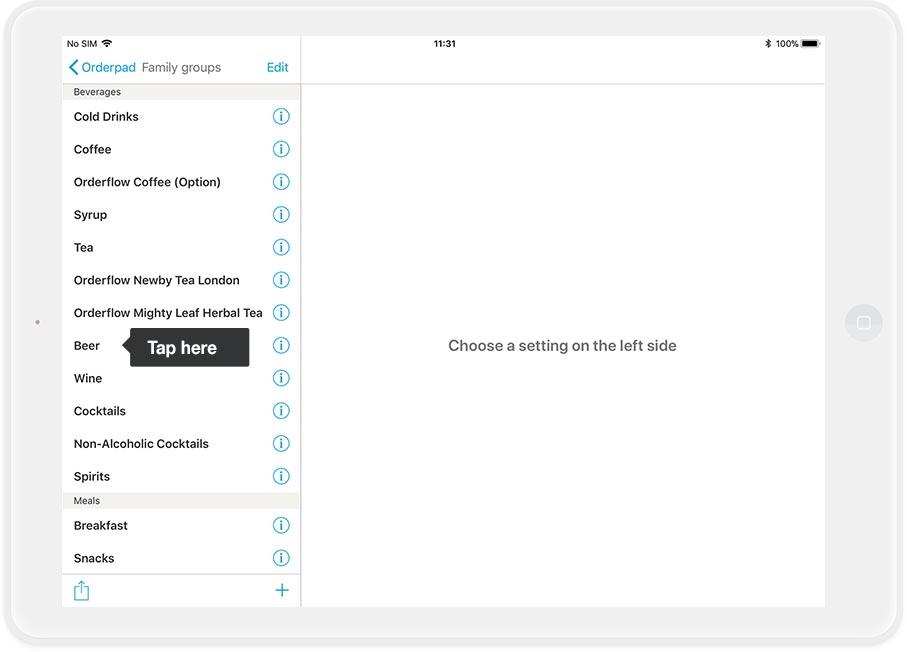
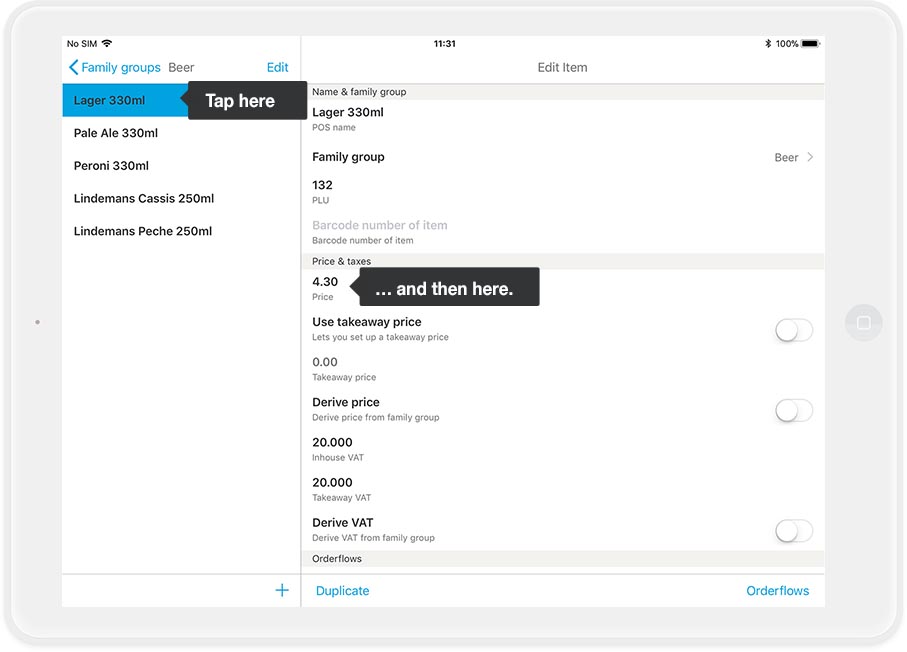
- Now tap on the desired item. Here we want to change the price for "Lager 330ml". Tap on the current price to change it. In the example, it is €4.30.
- Tap on the small grey "X" on the right. This will delete the old price. Now enter the new price via the keyboard, e.g. 6 8 0 for €6.80.
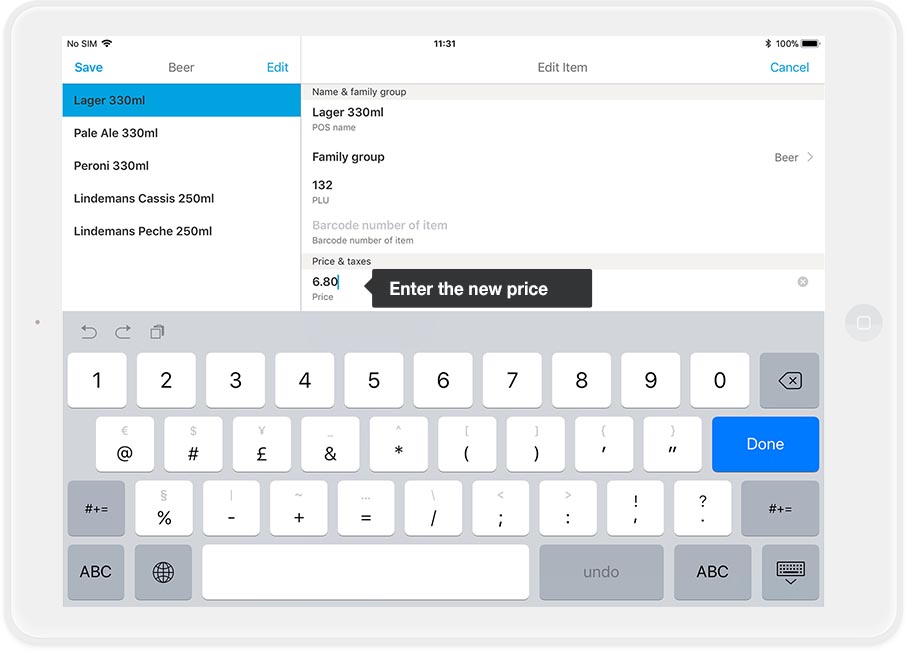
- Now press "Save" in the upper left corner and in the new window again on "Save".
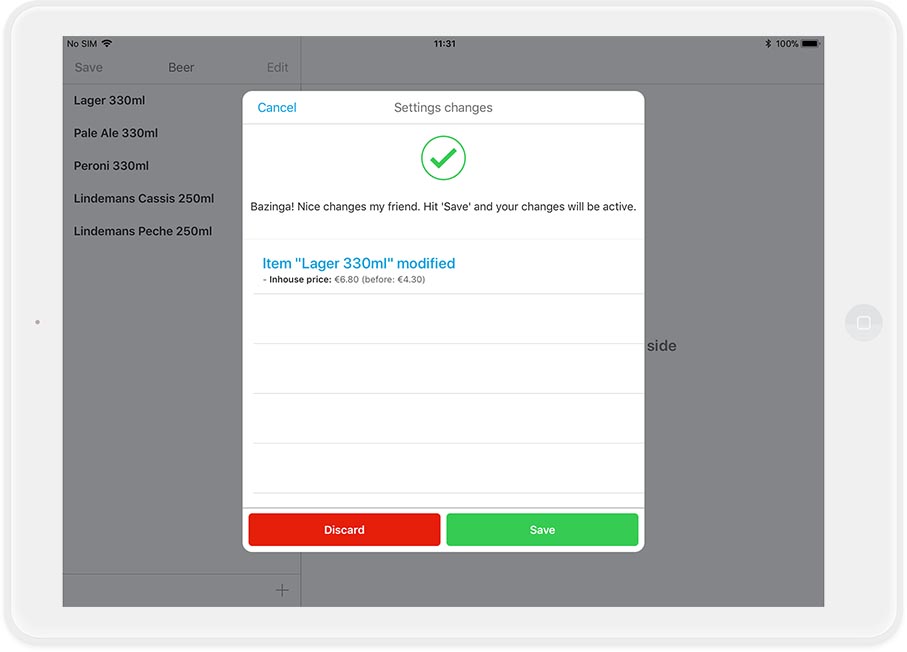
- Done, the item has a new price!
Any more questions?
When should I create a new item, when should I just update an existing item?
In general, it’s always better to create a new item—whether you’re introducing a new product to your assortment or simply changing the price of an existing one. This approach ensures that your GDPdU/GoBD exports remain clear and easy to follow, making it simple to prove to the tax authorities when an item had a specific price or was part of your assortment.
How does changing an item affect my sales statistics?
In the sales statistics on MY orderbird, the current state of items is always used to display the data. Historical data is used for calculations, which can lead to discrepancies and seemingly ”incorrect calculations” in the reports, as the display does not match the historical data. However, rest assured that the sales reports contain the correct revenue figures; it’s simply a visual issue caused by improper item modifications.
Impact of Changes on the Sales Report:
Name Change
If you change the item name from “Cola” (used January–March) to “Spezi” (used April–July) and then to “Cheeseburger” (used August–December), only “Cheeseburger” will appear in your sales statistics starting from August.
If the item “Cheeseburger” has been categorized under the main product group “Food” from August onward, the entire revenue for the year (including sales under the names “Cola” and “Spezi”) will appear in the “Food” category of your annual sales report.
Price Change
If you change the price of the item “0.3 Cola”, your sales statistics may appear “incorrect”. This is because the current state of the item is always used for display, while the historical data/prices are used for revenue calculations.
| Sales | Time Period | Revenue |
What is calculated for the sales report? |
What you see in the sales report |
| 10 x “0,3 Cola” à €2.50 | January – March | €25 | 10 x €2.50 = €25 | 10 x ”0,3 Cola” à €2.50 = €25 |
| 10 x “0,3 Cola” à €3.50 | April – June | €35 | (10x €2.50) + (10 x €3.50) = €60 | 20 x ”0,3 Cola” à €3.50 = €60 (instead of 20 x €3.50 = €70) |
| 10 x “0,3 Cola” à €3.90 | June – December | €39 | (10x €2.50) + (10 x €3.50) + (10 x €3.90) = €99 | 30 x ”0,3 Cola” à €3.90 = €99 (instead of 30 x €3.90 = €117) |