Contact Us

If you still have questions or prefer to get help directly from an agent, please submit a request.
We’ll get back to you as soon as possible.

Please fill out the contact form below and we will reply as soon as possible.

  • Knowledge Base MINI
  • Contact us
English (US)
US English (US)
DE German
  • Home
  • Working with orderbird PRO
  • Working
  • Editing your menu card, articles and selecting favorites

How can I change the color of an item?

Written by Jens B.

Updated at April 18th, 2024

Contact Us

If you still have questions or prefer to get help directly from an agent, please submit a request.
We’ll get back to you as soon as possible.

Please fill out the contact form below and we will reply as soon as possible.

  • First Steps
    Hello new Bird! About your Apple devices Step 1: How to set up your network Step 2: MY orderbird Step 3: How to install and set up the app Step 4 - How to serve your first guest Step 5 - Card payment with orderbird PRO
  • Working with orderbird PRO
    Working Settings Fiscalization in Austria (RKSV) "Kassensicherungsverordnung" in Germany orderbird PRO - Versions and Updates
  • Card payment
    Your start with card payment with orderbird PRO and Worldline Your start with card payment with orderbird PRO and Nexi Germany Your start with American Express Working with orderbird card payment Pay Terminal Plus (WiFi card reader) Pay Terminal One (Bluetooth card reader) Card payment on the smartphone
  • Analyze your sales
    Reports on orderbird PRO The DATEV export Reports on MY orderbird
  • Printer & Network
    Printer Network
  • Expand your orderbird PRO
    orderbird PRO Cashbook orderbird Gift Cards Bestellmanagement
  • MY orderbird - Your orderbird business account
    Your account settings on MY orderbird
+ More

Table of Contents

In a nutshell Step by step

Since orderbird 6.0, we’ve added a dash of color and improved navigation for the orderpad. You want to display Coke in bright red in your orderpad? No problem: This is how you add colors to your items:

In a nutshell

  • Open your app and go to "Settings" > "Orderpad" > "Menu card" > "Your family group"
  • Tap on an item
  • Tap "Set color" and select the desired color
  • Save the color

Step by step

In our example, you will learn how to add color to the item "Cola 0.2l".

  1. Open your orderbird app and tap on "Settings" > "Orderpad" > "Menu card" > "Non-Alcoholic".
  2. Now you see your soft drinks. Tap on "Cola 0.2l".
  3. Swipe down on the right side and tap on "Set color" next.
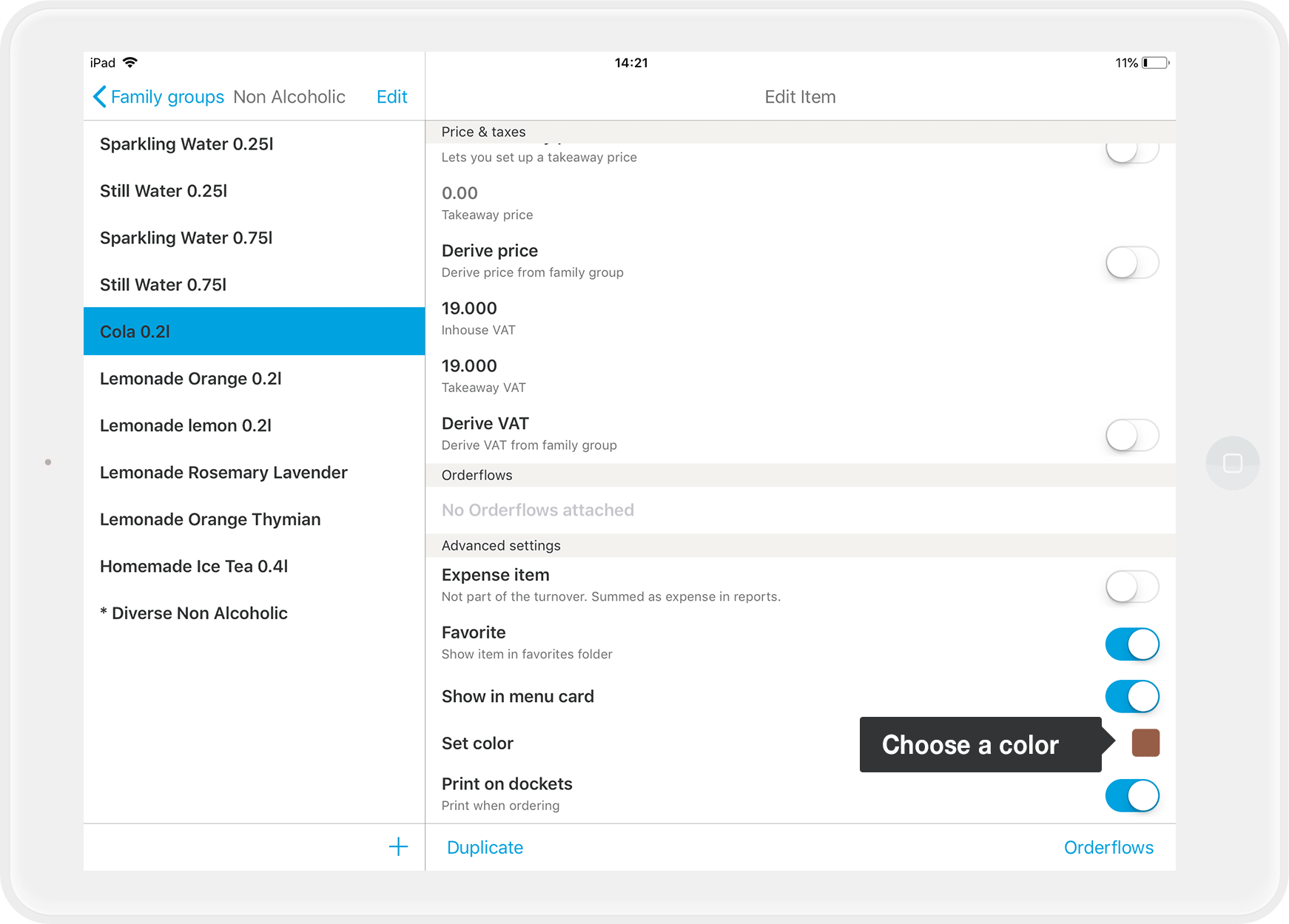
    OBAPP_EN_ColourItem_1.png
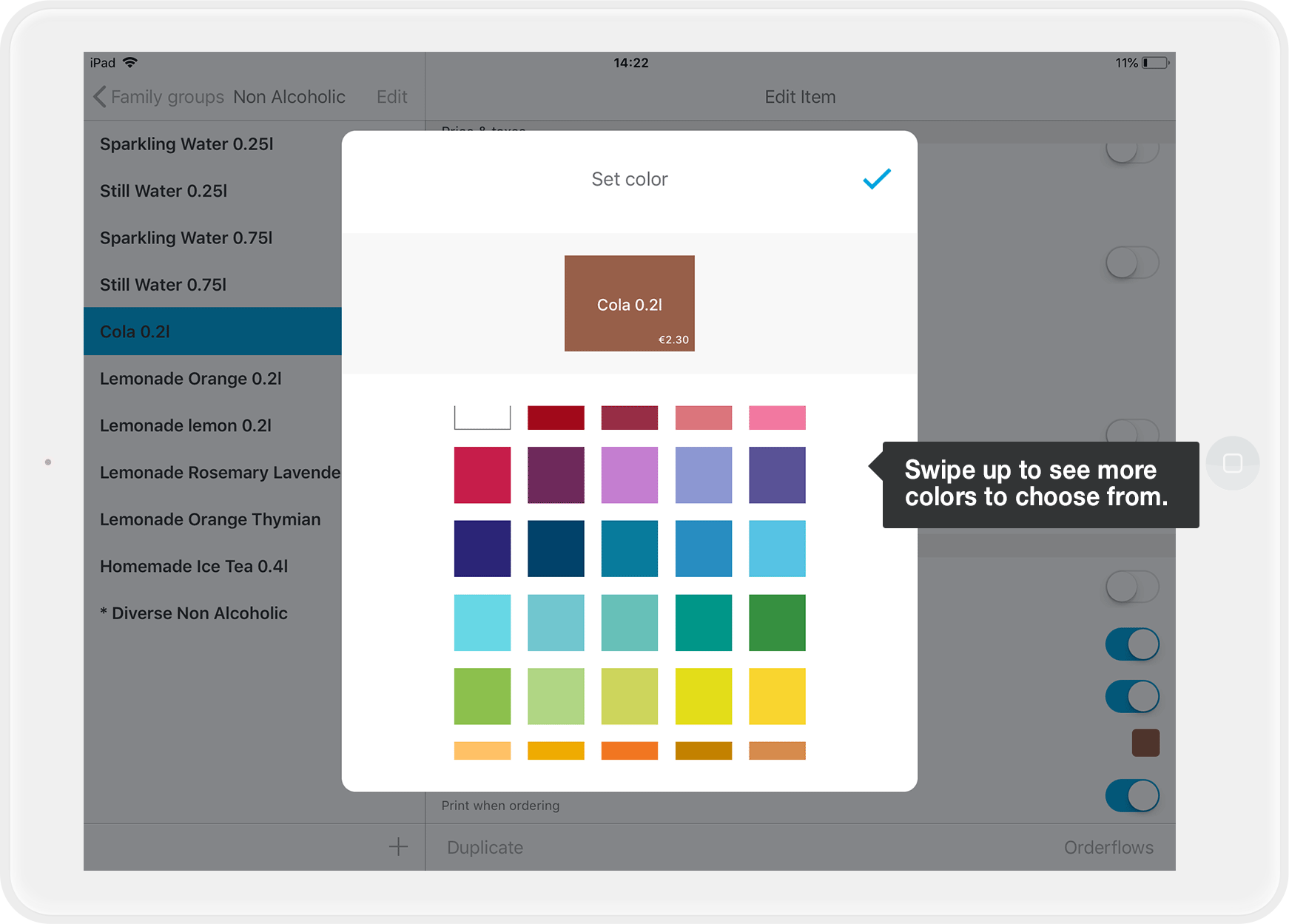
  4. Now you can choose a color.
    OBAPP_EN_ColourItem_2.png
  5. When you have chosen a color, tap on the little check mark in the upper right corner and close the window.
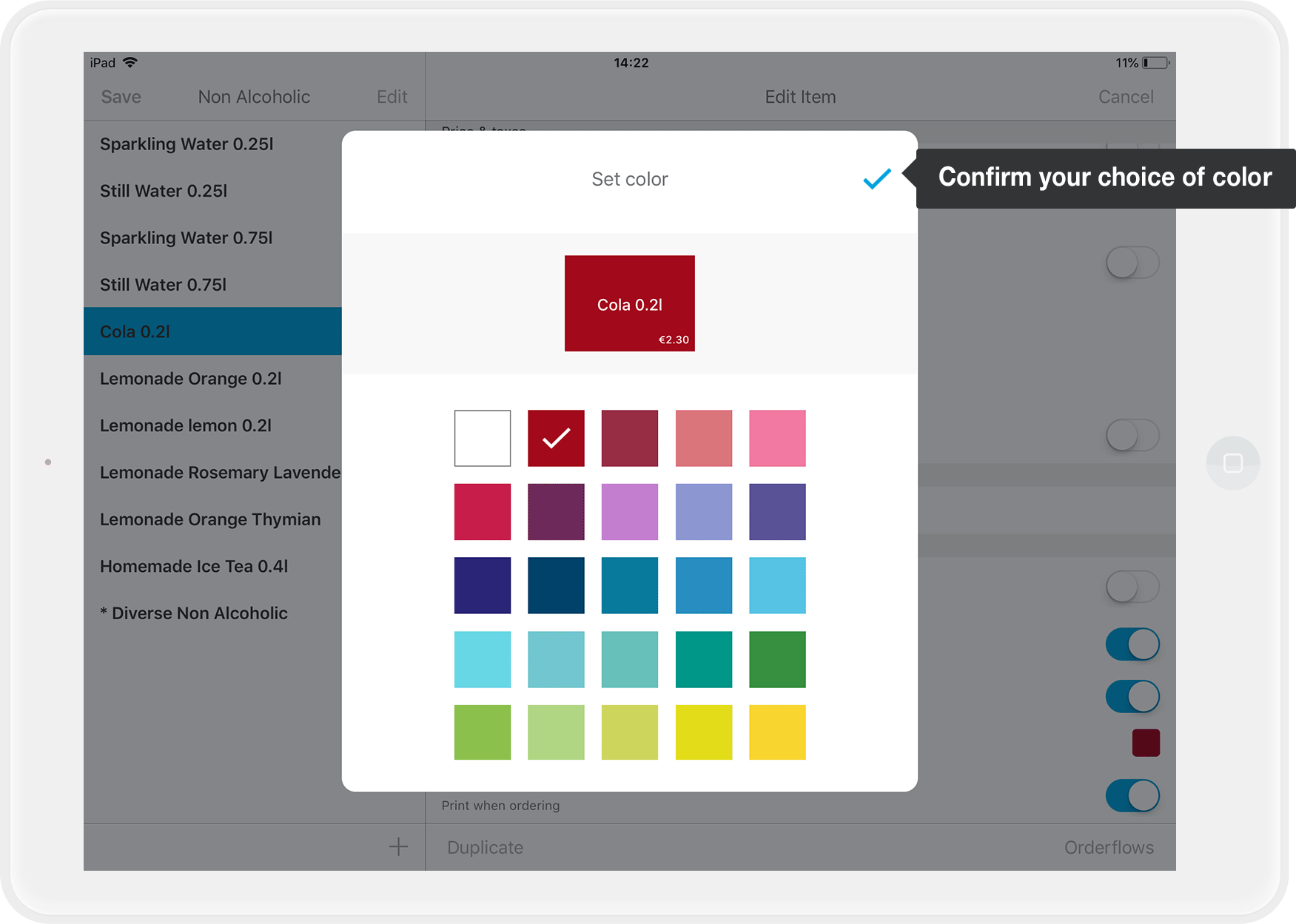
    OBAPP_EN_ColourItem_3.png
  6. Tap on "Save" in the upper left corner to save your changes.

Now the coke is bright red in your menu, so you can find it at a glance.
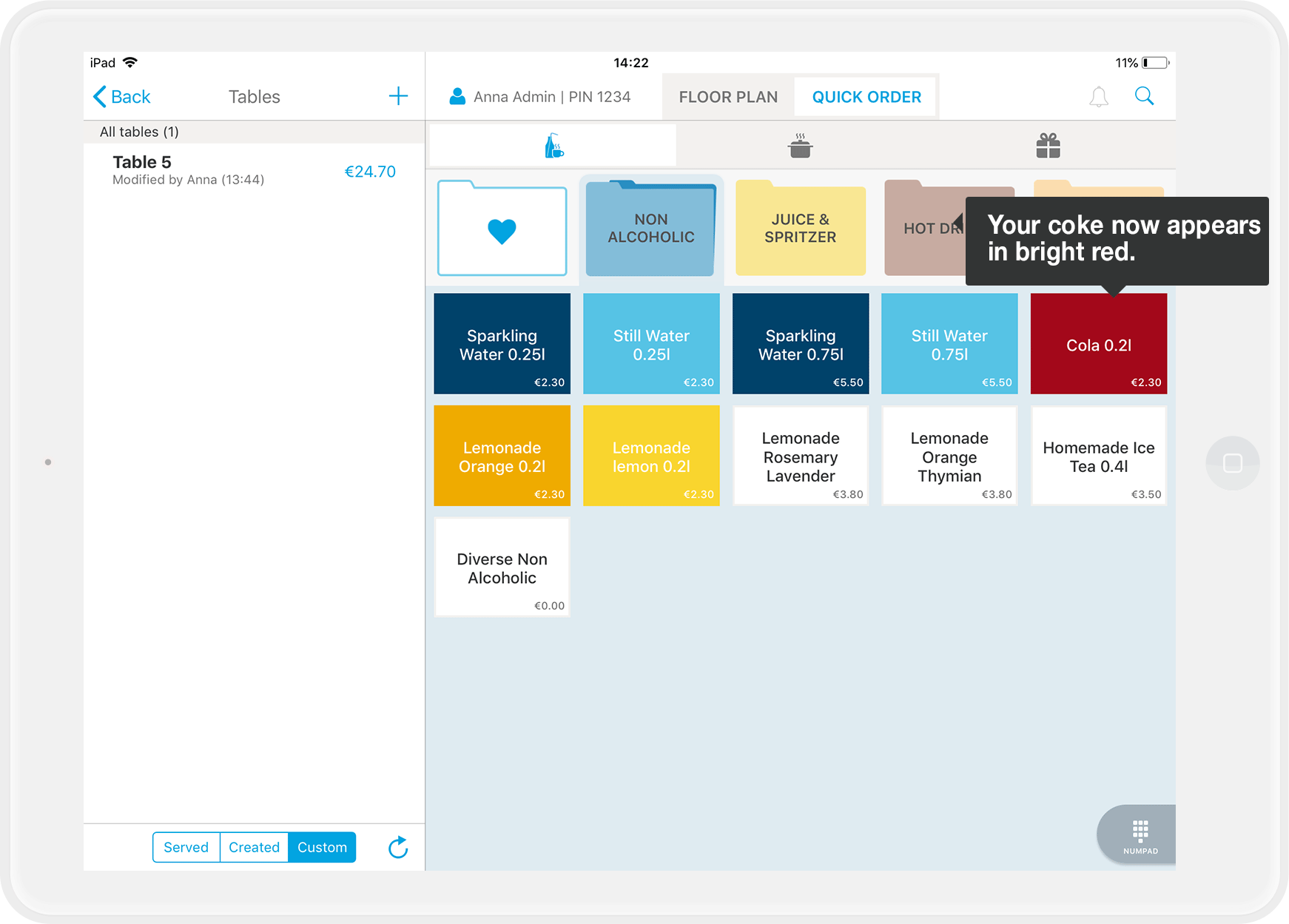
OBAPP_EN_ColourItem_4.png

Do you want to change the color of a family group as well? Then read on: How can I change the color of a family group?

pigment alteration color change

Was this article helpful?

Yes
No
Give feedback about this article

Related Articles

  • How can I change the color of a family group?
  • How to add a new item
  • Menu Editing
  • How do I add a new family group?
030 208 983 098

About orderbird

With over 17,000 customers — restaurants, cafés, bars, clubs, and beer gardens — orderbird is one of the leading Point of Sales systems for the hospitality industry in Europe. With the mobile POS system orderbird MINI, orderbird also offers a smart cash register solution for service providers, retailers, mobile hospitality, and the crafts.

orderbird was founded in 2011 and today employs more than 120 people.

Address

orderbird GmbH
Ritterstraße 12
D-10969 Berlin
Phone: 030 208 983 098

Opening hours

Monday: 09:00 - 18:00
Tuesday: 09:00 - 18:00
Wednesday: 09:00 - 18:00
Thursday: 09:00 - 18:00
Friday: 09:00 - 18:00
Saturday: Closed (except emergency support)
Sunday: Closed (except for emergency support)


© 2026 orderbird GmbH
  • Imprint
  • Privacy Policy
  • Legal Notice
Expand