My Pay Terminal One is not working correctly. What can I do?

Table of Contents
For some reason, your Pay Terminal One no longer works the way it used to? There may be a technical defect if you have problem inserting cards. Or there might be a connectivity issue between the terminal and your Apple device.
Here is what you can do:
The card inserted is not recognized
If you insert a card, your Pay Terminal One doesn't respond and continues to display “Please insert or swipe card?”. Or is the payment aborted when you insert the card?
Then, most likely, there is a hardware defect in the device. This can be caused by “pitted”, i.e., damaged cards, or after inserting a card too deep or too vigorously.
Please get in touch with us by e-mail at help@orderbird.com or by phone at: +49 30 208 983 098.
Verify the connection between Apple devices and your Pay Terminal One step by step
1. Check and update your iOS version
Please check that your Apple device has the latest operating system (iOS). For your card reader to successfully pair with your Apple device, it must be more recent than iOS 9.3.5. The ideal would be the latest iOS, as there are connectivity issues related to every iOS x.0 (for example, 13.0, 14.0, and 15.0)
- You can find out your current iOS version directly on the Apple support website: Find the software version on your iPhone, iPad, or iPod (https://support.apple.com/de-de/HT204204).
- You can find out how to update your iOS version here: Update your iPhone or iPad (https://support.apple.com/en-gb/HT204204).
2. Check the Bluetooth connection
- How does the Bluetooth light on the Pay Terminal One blink?
- If it pulsates slowly, the terminal is connected.
- If it blinks quickly and hectically, the terminal is not (or no longer) paired.
- Can you see the Bluetooth icon on the display of the Pay Terminal One?
- If it is constantly on, the terminal is connected.
- If it blinks, then the terminal is not paired (anymore).
- Grab the Apple device to which your Pay Terminal One is supposed to be connected.
- Open Settings and tap on “Bluetooth.”
- Check if the Bluetooth slider is activated (green).
- Check if your Pay Terminal One is displayed under “My Devices” and if the status is “connected”.
3. Everything is connected, but the card payment is still not working? Then reset the Bluetooth connection on your Pay Terminal One!
On the front side of the card reader, you will find the Bluetooth button:
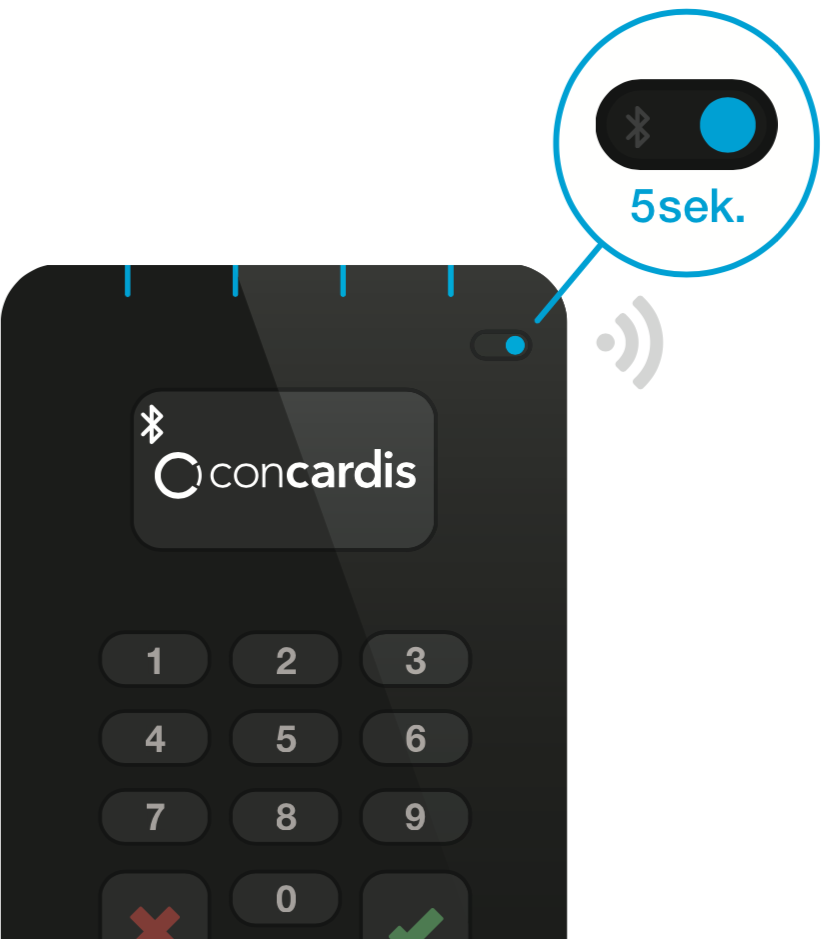
Press it for 5–10 seconds until the blue light blinks quickly. Now pair your card reader with your Apple device.
4. Nothing changed? Then, please reset the connection between Pay Terminal One and your Apple device!
In the following steps, you will unpair your Pay Terminal One from your Apple device by ignoring it in Settings.
- Open Settings on your Apple device and tap on “Bluetooth.”
- Check if the Bluetooth slider is activated (green).
- Tap on the “i” next to the entry with the name “orderbird” and your device's serial number.
- Select “Forget this device.”
- Deactivate Bluetooth on your Apple device and wait 10 seconds before reactivating it.
- Grab your Pay Terminal One. Then, press the Bluetooth button on the reader for at least 5 seconds until the Bluetooth icon is shown on the display.
5. Pair your Pay Terminal One with the Apple device
- Open your Apple device's setting and tap on “Bluetooth.”
- Tap on the terminal's name under “Other devices.” The two devices will establish a connection.
- You will now see a pairing code, which will also be displayed on your Pay Terminal One. The two codes must match.
- Confirm the pairing on both devices.
- Relaunch the orderbird app and make a test payment.
6. Is the card payment still not working? Then a new start of the Pay Terminal One may help
- Open the settings of your Apple device and tap on “Bluetooth”.
- Check if the Bluetooth slider is activated (green).
- Tap on the blue “i” next to the entry with the name “orderbird” followed by your device's serial number.
- Select “Forget this device”.
- Grab your Pay Terminal One. Press the reset button on the reader
- Select “3 - Total Factory Reset”.
- Turn your iPad off for at least 30 seconds.
- Disable and enable Bluetooth on iPad with a 10-second break.
- Pair the two devices again.
- Relaunch the orderbird app
- Start a test payment
- If you are still not successful, try to pair the Pay terminal One with another Apple device.
If the steps listed above are too complex for you, please look here:###BROKEN LINK How can I reset my Pay Terminal One to factory settings?
7. Nothing helps?
Contact our support via email at help@orderbird.com or call us.
I have another issue with my Pay Terminal One
Keep on reading: