Arbeiten mit dem Tischplan

Übersicht
Du nutzt orderbird PRO XS:
Bei orderbird PRO XS wird Dir anstatt eines visuellen Tischplans, eine Liste mit 10 Tischen angezeigt, die Du individuell benennen kannst. Wie Du Deine Tische verwaltest, findest Du hier.
Mit Klick auf diese Seite findest Du eine Übersicht, über die Möglichkeiten von orderbird PRO XS vs. orderbird PRO.
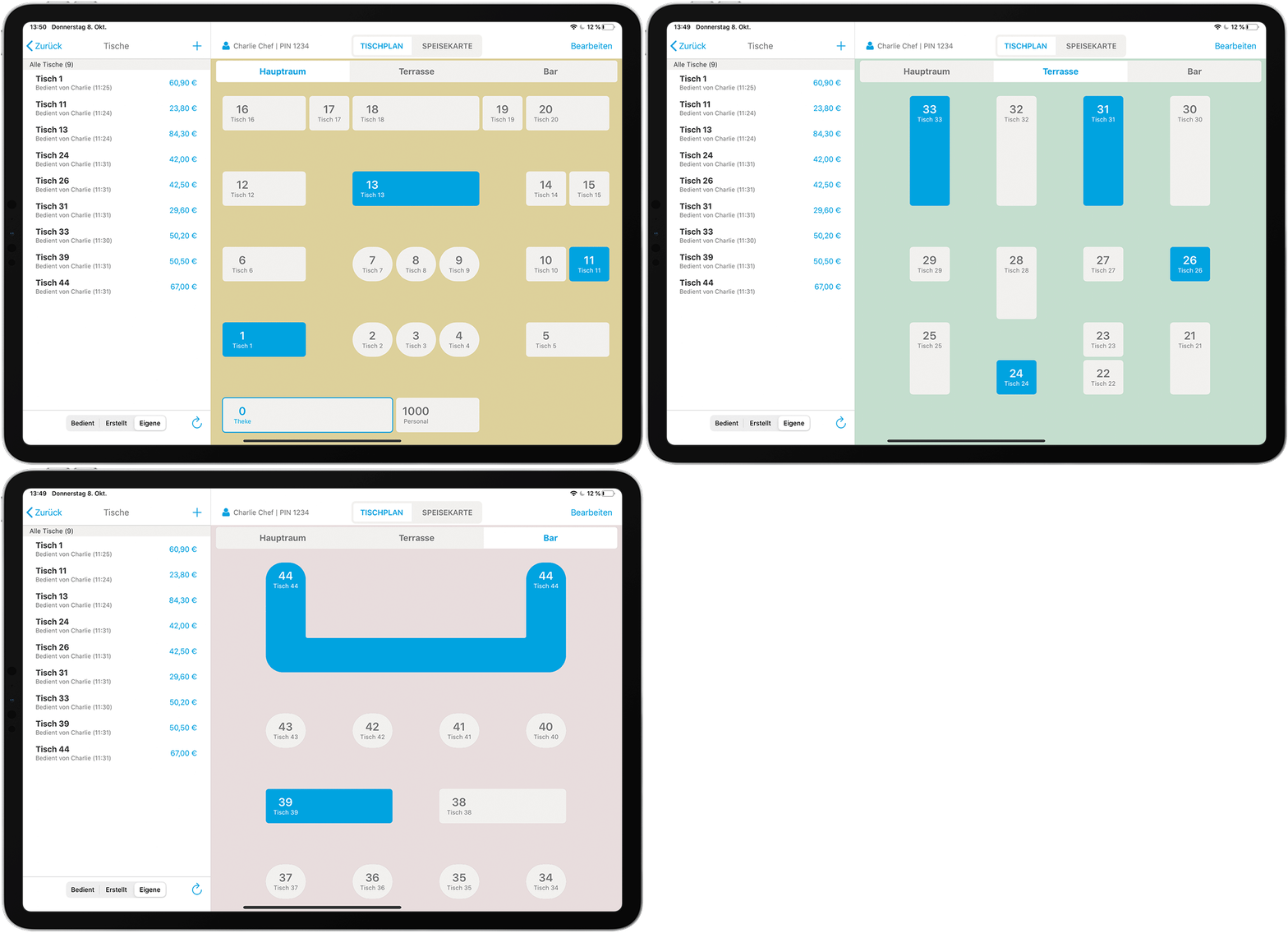
Mit dem Tischplan in der orderbird App kannst Du die Bestellungen Deiner Gäste auch visuell ganz leicht einem Tisch zuordnen. Du kannst dafür bis zu fünf verschiedene Bereiche (z.B. Terrasse, 1. OG, Kaminzimmer, etc.) anlegen und das Raster pro Bereich auf bis zu 15x15 Tische erweitern.
Überflieger
- Gehe auf Bestellblock > Tischplan > Bearbeiten, um Bereiche oder Tische zu erstellen, zu bearbeiten oder zu löschen.
- Gehe auf Bestellblock > Tischplan, um über den Tischplan Bestellungen aufzunehmen oder zwischen verschiedenen Bereichen zu wechseln.
Wichtig: Der Tischplan funktioniert nur auf dem iPad, da das Display von iPod Touch und iPhone zu klein sind!
Schritt für Schritt
Tischplan aufrufen
- Tippe auf Bestellblock.
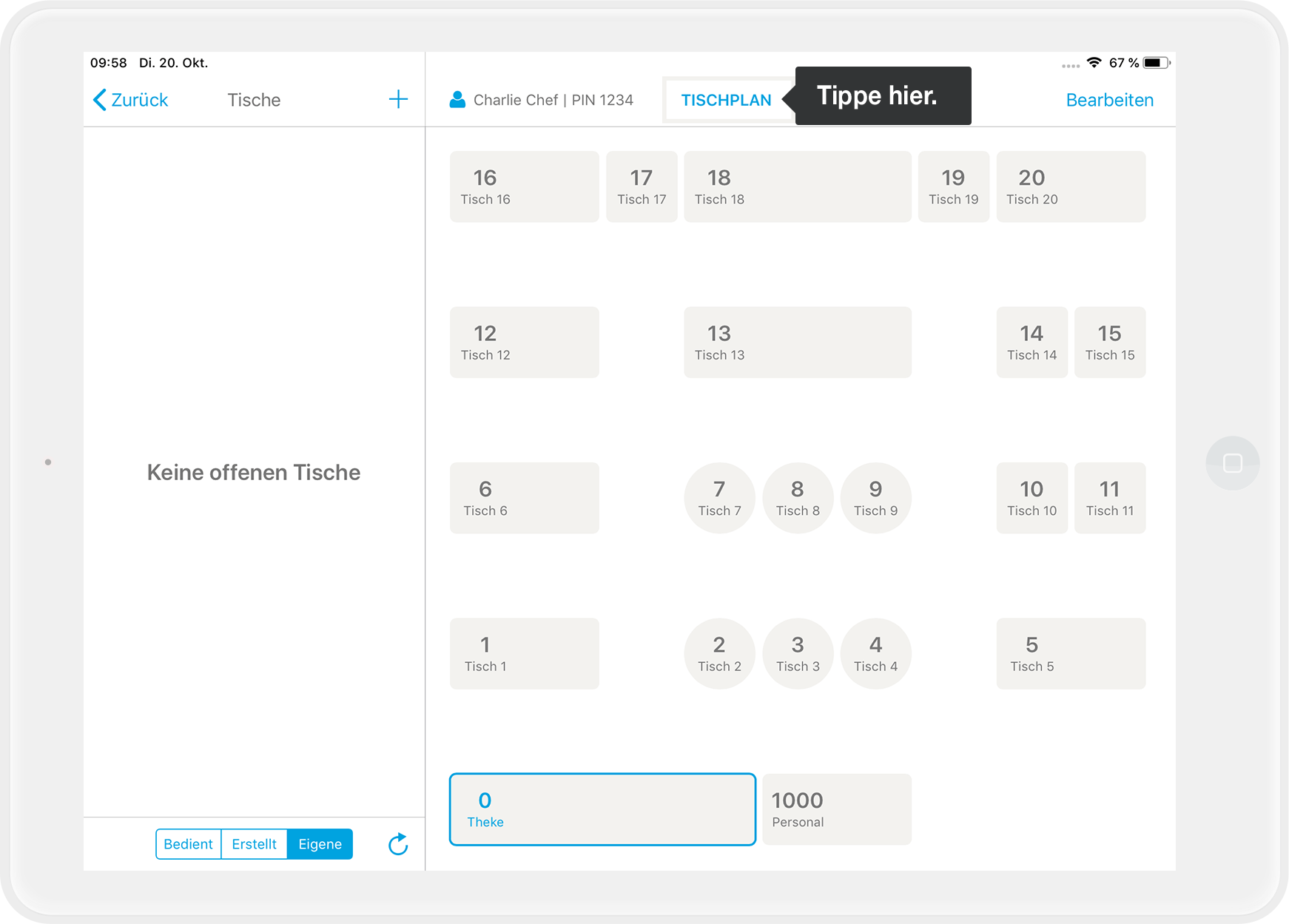
- Tippe in der oberen Navigationsleiste auf „Tischplan“.
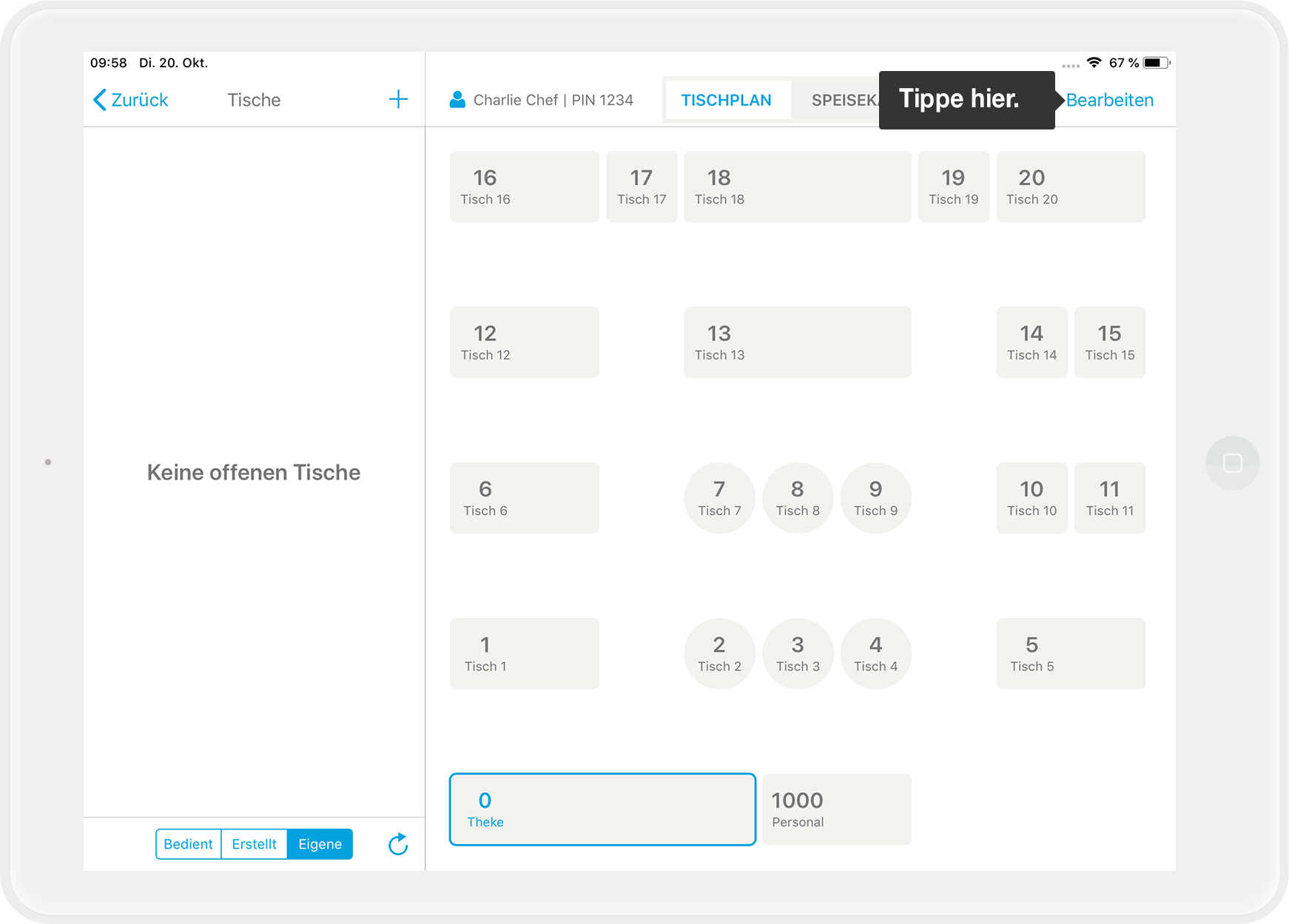
- Klicke rechts oben auf „Bearbeiten“, um den Tischplan anzupassen. Du siehst jetzt das Tisch-Raster im Bearbeitungsmodus
Tische erstellen & anordnen
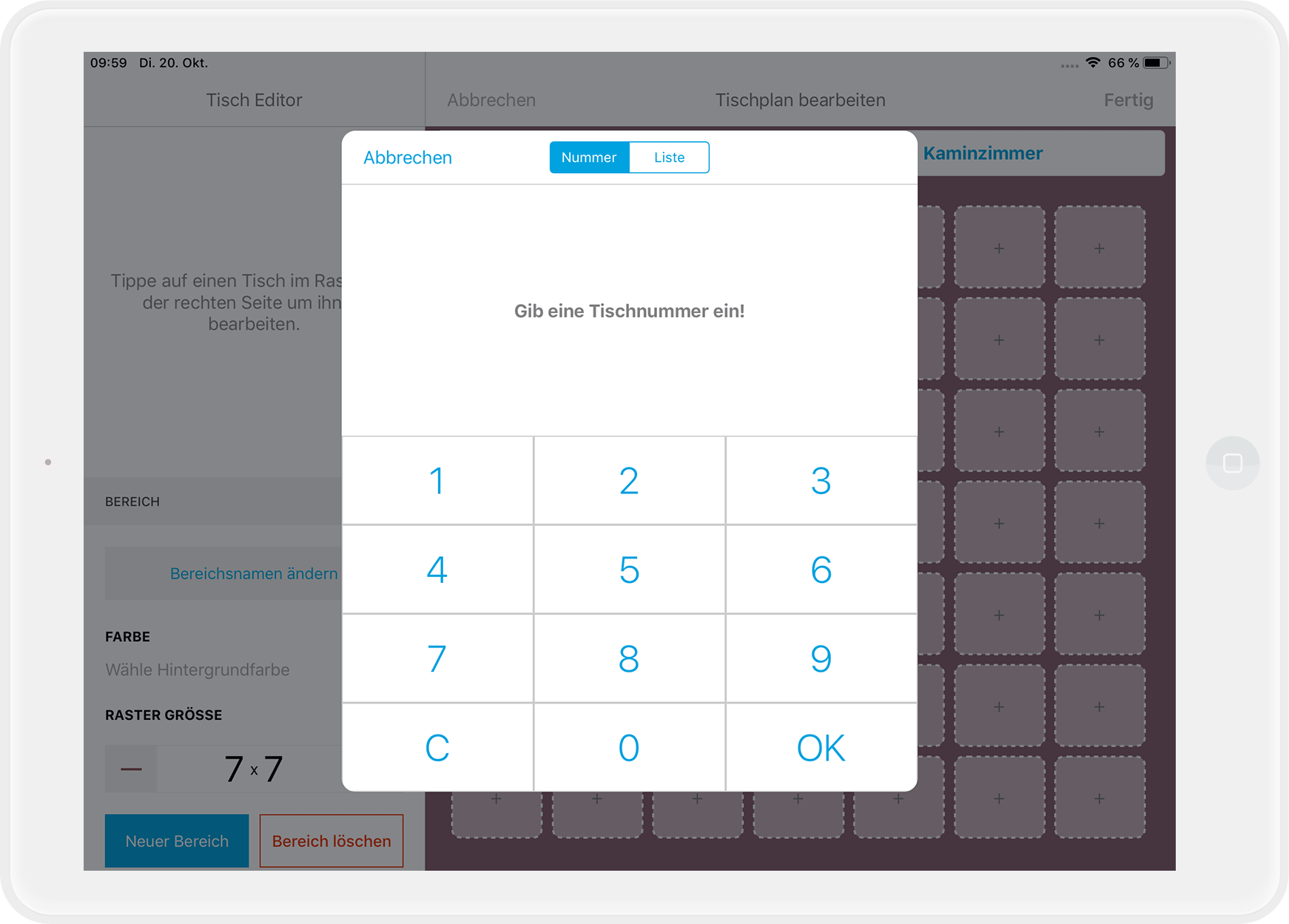
- Tippe im Raster auf eine leere Tischvorlage, das ist ein Quadrat mit dem "+" in der Mitte.
- Du wirst jetzt aufgefordert, eine Tischnummer zu vergeben.
Tipp
Du kannst jederzeit links auf „Tischnummer ändern“ tippen und eine neue Nummer eingeben.
- Klicke während Du den Tisch bearbeitest auf eine der angrenzenden blau-umrahmten Tischvorlagen: Der Tisch vergrößert sich in die gewählte Richtung. So kannst Du alle möglichen Anordnungen von Tischen im Tischplan anlegen: rund, L-förmig, U-förmig, lange Reihen, …
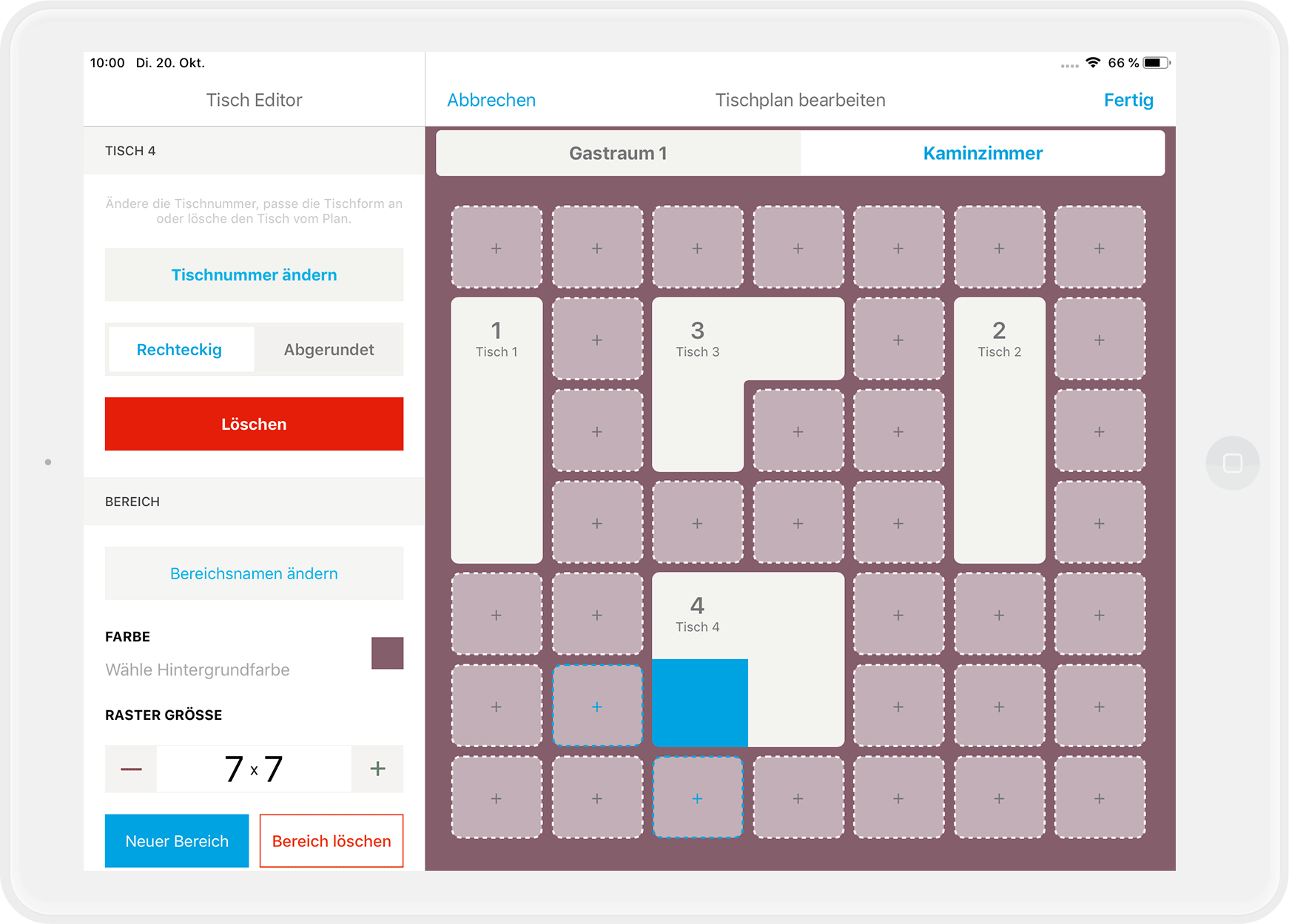
- Tippe im Tisch Editor links auf „Abgerundet“, und die Tischecken runden sich ab.
- Tippe oben rechts auf „Fertig“, um zu speichern.
Tische löschen
- Wähle den Tisch aus, den Du löschen willst
- Tippe links auf "Löschen".
- Bestätige, dass Du den Tisch wirklich löschen willst.
Tipp: So kannst Du auch bei Tischgruppen einzelne Tische wieder wegnehmen. - Tippe oben rechts auf „Fertig“, um zu speichern.
Anzahl der Tische in einem Bereich ändern
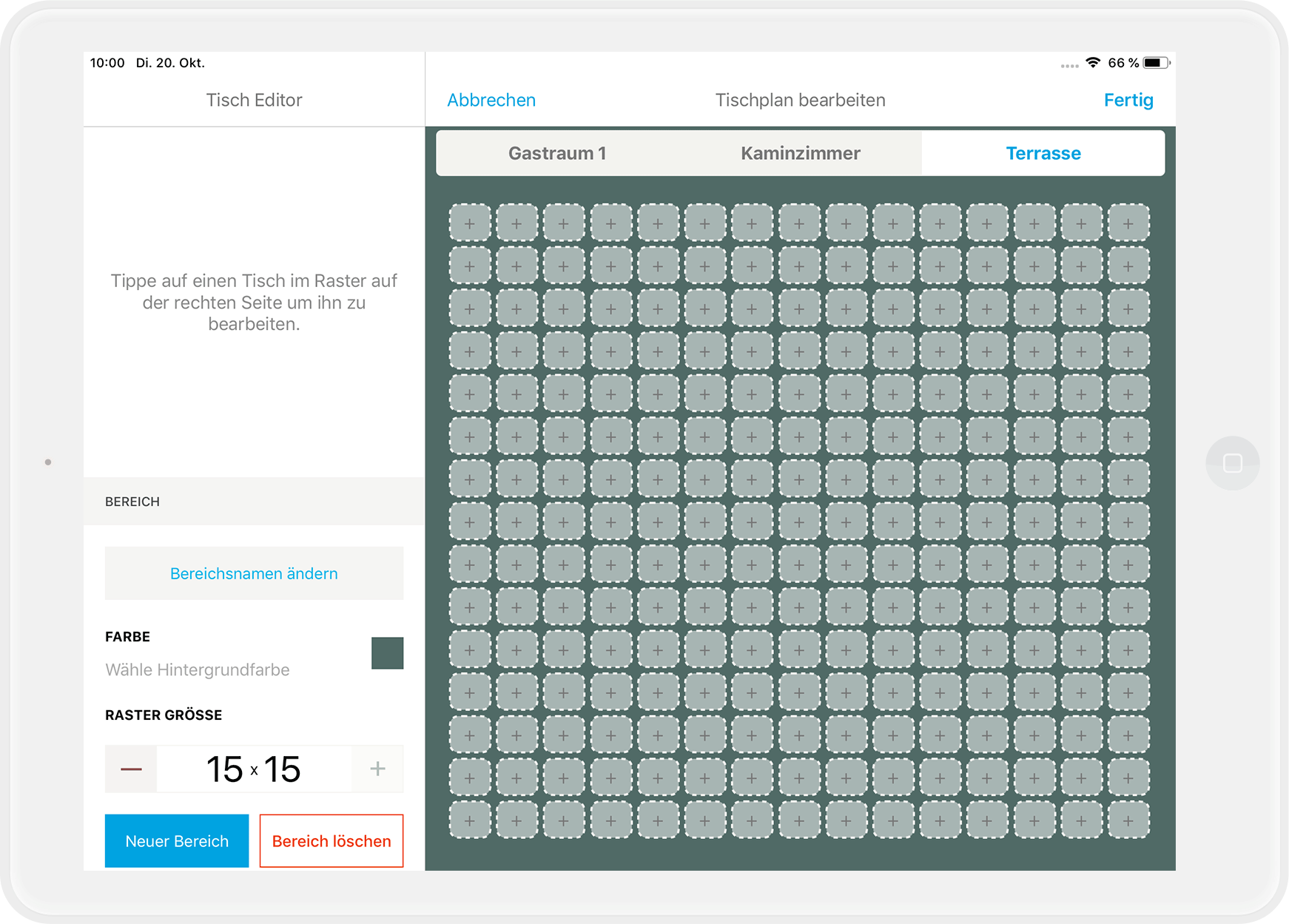
Standardmäßig wird Dir ein Tisch-Raster von 5x5 Tischen pro Bereich angezeigt. Dieses kannst Du auf maximal 15x15 Tische vergrößern.
- Tippe dazu links unten bei "Raster Größe" einfach so oft auf „+“, bis Du die gewünschte Größe erreicht hast bzw. auf „-“, um das Raster zu verkleinern:
- Tippe oben rechts auf „Fertig“, um zu speichern.
Bestellungen mit dem Tischplan aufnehmen
Tippe einfach auf den Tisch im Tischplan und Du kannst wie gewohnt eine Bestellung aufnehmen. Bediente Tische mit einer Bestellung erscheinen blau gefärbt in der Übersicht. Sobald ein Tisch abgerechnet und frei ist, wird er wieder weiß.
Einen neuen Bereich anlegen
- Tippe im Tischplan unten links auf "Neuer Bereich".
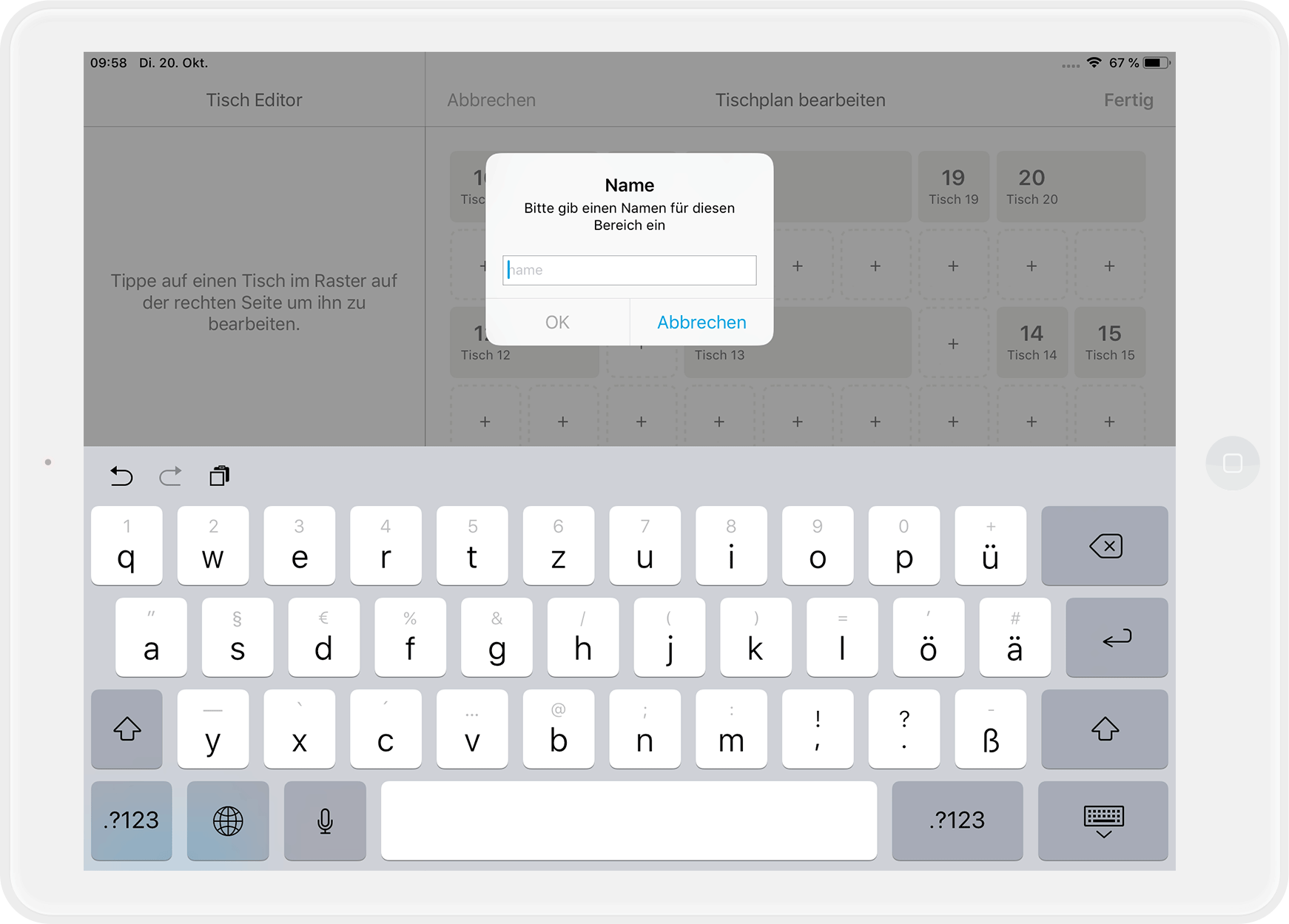
- Gib einen Namen für den neuen Bereich ein.
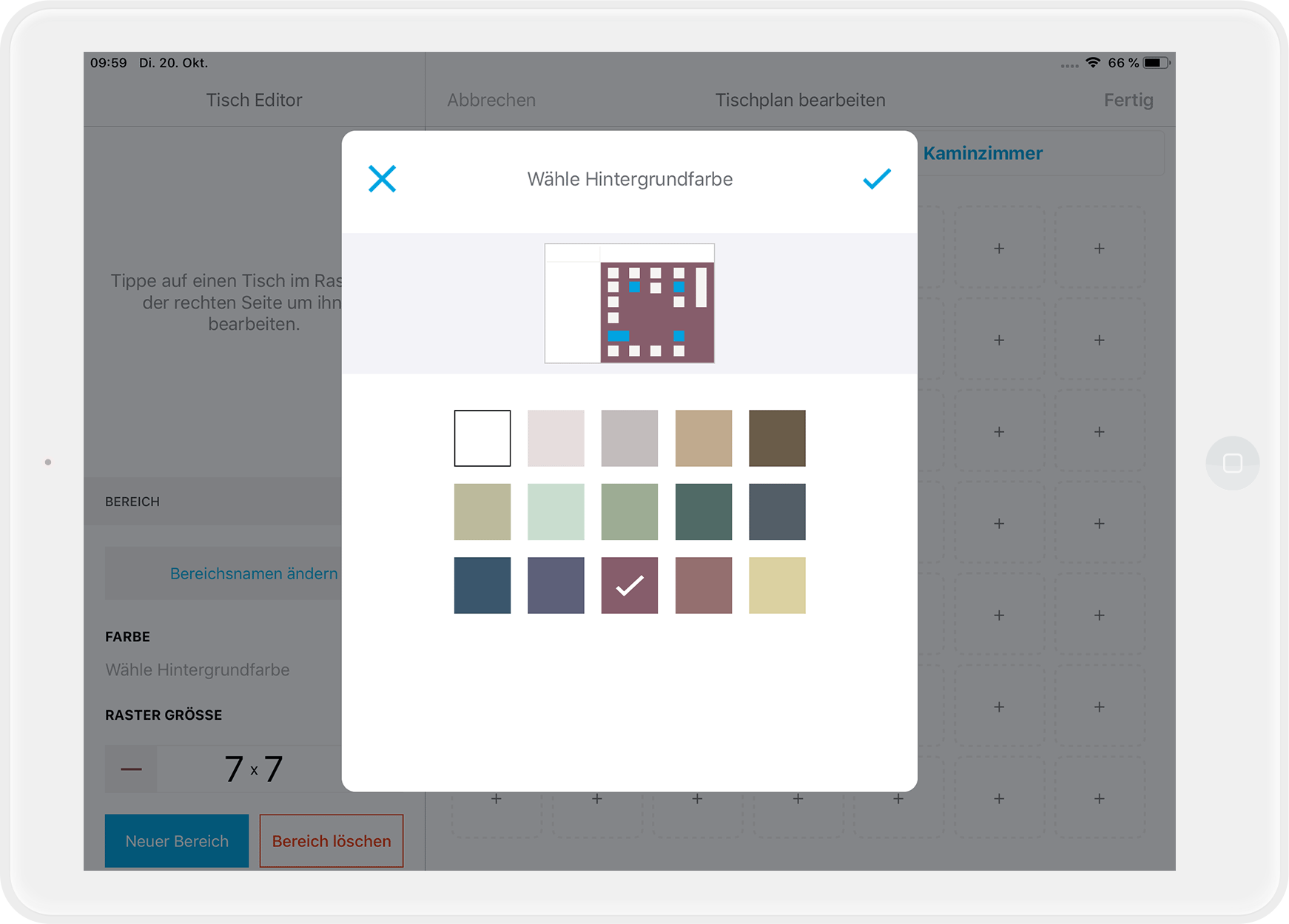
- Um die Bereiche schnell voneinander unterscheiden zu können, kannst Du verschiedene Farben für das Tisch-Raster hinterlegen. Tippe dazu auf "Farbe".
- Erstelle für Deinen neuen Bereich Tische wie oben beschrieben.
- Tippe oben rechts auf „Fertig“, um zu speichern.
Zwischen verschiedenen Bereichen wechseln
Wenn Du mehrere Bereiche angelegt hast, dann werden Dir die Namen der Bereiche in verschiedenen Tabs an der oberen Leiste angezeigt. Tippe einfach auf den Namen des Bereichs, in den Du wechseln möchtest: 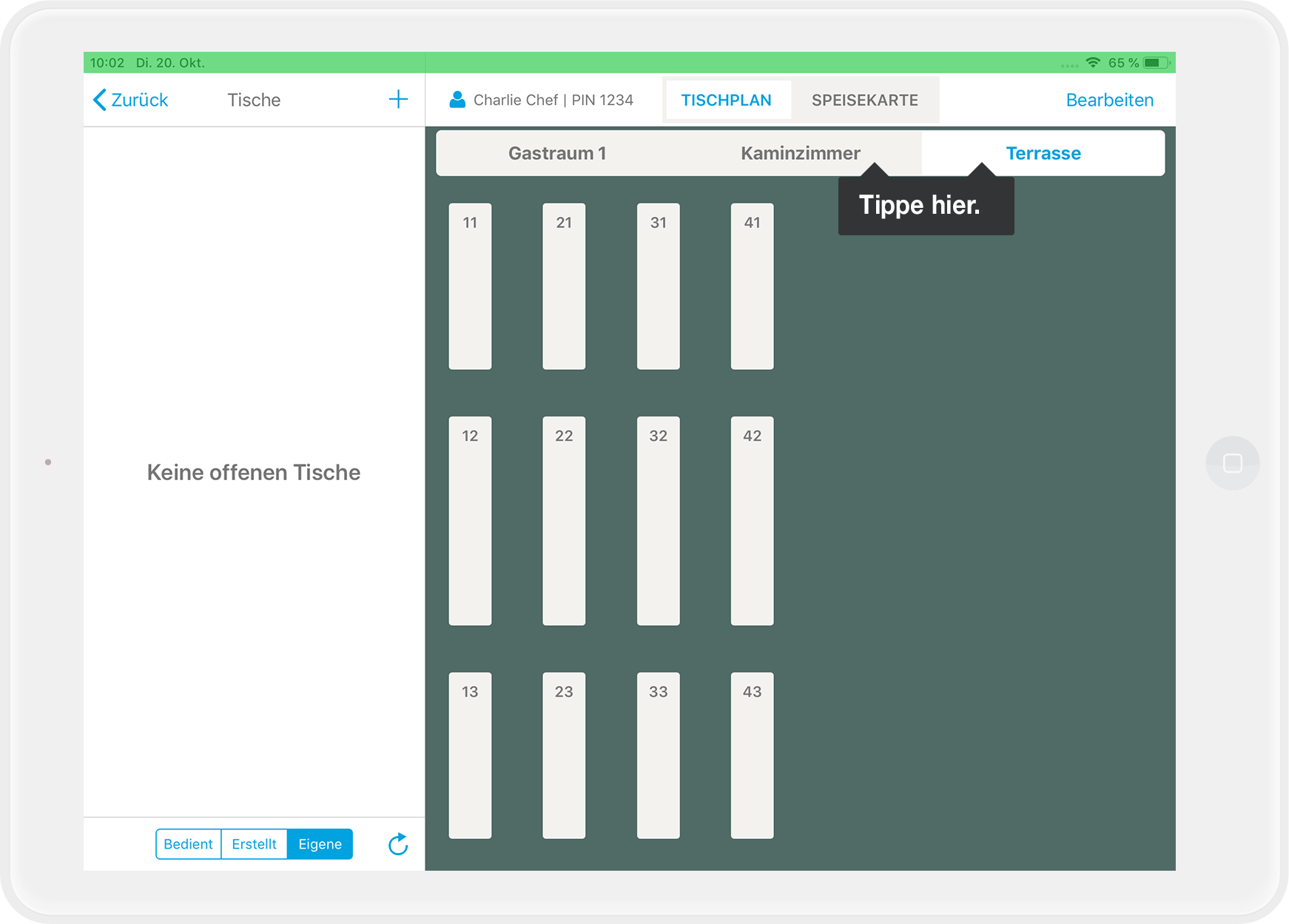
Noch Fragen?
Tischplan in einer Schicht ändern – Was ist möglich?
Während einer laufenden Schicht kannst Du Deinen Tischplan anpassen, jedoch nur eingeschränkt:
- Mögliche Änderungen: Bereits angelegte Tische können verschoben oder in ihrer Form angepasst werden.
- Nicht möglich: Neue Tische können nicht angelegt und bestehende Tischnamen nicht geändert werden.
Das Hinzufügen neuer Tische oder das Ändern von Tischnamen zählt als Änderung der Stammdaten. Solche Änderungen sollten aus Gründen der Datenkonsistenz nur bei geschlossener Schicht vorgenommen werden.
Tischplanänderungen außerhalb der Schicht
Plane größere Anpassungen am Tischplan am besten außerhalb einer offenen Schicht.
Wie füge ich Tische hinzu?
Nicht in einer offenen Schicht ;). Wenn Du wissen möchtest, wie Du Deine Tische einfach und effizient organisieren kannst, schau Dir diesen Artikel an: Wie verwalte ich meine Tische?